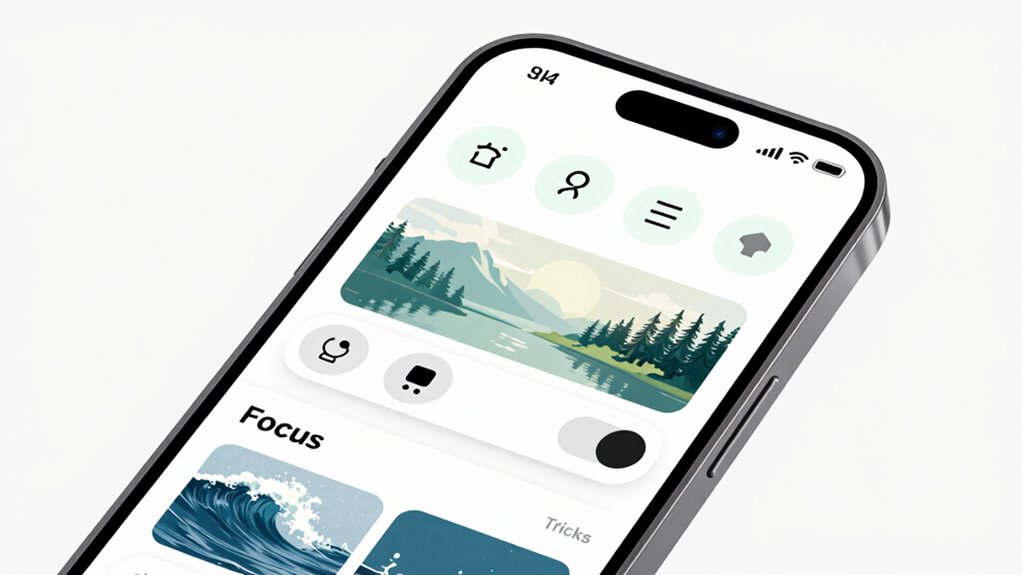

To improve sleep, turn off non-essential notifications during the night and enable focus modes to block distracting apps or contacts. Switch your display to grayscale an hour before bed to reduce visual stimulation and avoid mindless scrolling. Adjust your device settings to create a calm environment that signals your body it’s time to unwind. Continuing to explore these tips will uncover more ways to guarantee restful, undisturbed sleep using your phone.

Turn your quiet moments into listening time
- Thousands of audiobooks, podcasts and originals
- Listen on your phone, tablet or Echo — also offline
- Cancel anytime
Key Takeaways
- Turn off non-essential notifications during sleep hours to minimize disruptions and promote relaxation.
- Activate focus modes like “Bedtime” to block distracting apps and alerts before sleep.
- Enable grayscale mode an hour before bed to reduce visual stimulation and curb mindless scrolling.
- Adjust device settings to create a calm environment, signaling your body it’s time to wind down.
- Consistently incorporate these settings into your nightly routine to improve sleep hygiene and overall rest quality.
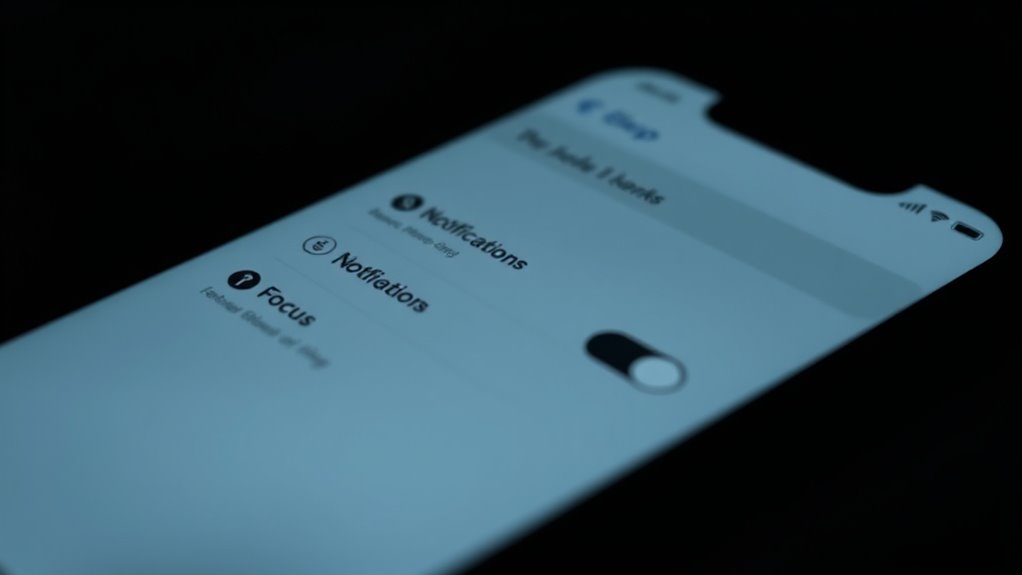
Getting a good night’s sleep can be challenging if your phone keeps you awake. Your phone’s notifications, screen brightness, and constant pings can disrupt your sleep hygiene and throw off your evening routines. To help you wind down effectively, it’s essential to set your device in ways that promote relaxation and minimize distractions before bed. Adjusting your phone’s settings isn’t just about turning on airplane mode; it’s about creating an environment conducive to restful sleep.
Start by managing notifications. Many apps flood your phone with alerts that can pull your attention away from relaxing activities. Turn off non-essential notifications during your scheduled sleep hours. This prevents interruptions and reduces the temptation to check your phone repeatedly. You can customize notification settings so only the most critical alerts come through, or better yet, silence everything altogether. This allows you to focus on your evening routines, such as reading, meditating, or preparing for the next day, without constant disruptions. Establishing a consistent pattern of reducing digital stimuli before bed improves your sleep hygiene and helps signal to your body that it’s time to unwind.
Turn off non-essential notifications before bed to reduce interruptions and promote relaxing evening routines.
Focus modes are another powerful tool. These modes temporarily block notifications from specific apps or contacts, giving you control over what can disturb you. When you activate a focus mode in the evening, you’re fundamentally setting boundaries for your phone usage, encouraging you to disconnect from digital distractions. Use this feature to create a calming environment—perhaps a “Bedtime” focus that silences work emails, social media, and news alerts. This not only preserves your evening routines but also trains your brain to associate your phone with relaxation rather than overstimulation. Over time, these routines become ingrained, making it easier to fall asleep and stay asleep.
Another trick that can help preserve your sleep hygiene is grayscale mode. Switching your phone’s display to black and white strips away the vibrant colors that often make scrolling addictive. Without the allure of bright visuals, you’re less likely to mindlessly scroll through social media or check notifications late into the night. This simple visual change makes your screen less stimulating and encourages you to put your phone down sooner. Incorporate this into your evening routine by activating grayscale mode an hour before bed, signaling to your brain that it’s time to wind down. Reducing visual stimuli can further enhance your ability to detach from your device and improve overall sleep quality. Paired with other settings, grayscale reduces the temptation to stay glued to your device, helping you develop healthier digital habits and improve your overall sleep quality.
Incorporating these phone settings into your nightly routine isn’t just about tech; it’s about fostering better sleep hygiene and creating a peaceful environment for rest. When you control your device rather than letting it control you, you’ll find it easier to detach from screens and achieve a more restorative night’s sleep.
As an affiliate, we earn on qualifying purchases.
Frequently Asked Questions
How Can I Schedule Automatic Sleep Mode on My Phone?
You can schedule automatic sleep mode on your phone by using its built-in sleep tracking feature. Set your preferred sleep and wake times, and enable the automatic sleep mode option. This activates a focused environment, reducing distractions. Additionally, customize your alarm to wake you up gently. This way, your phone helps you maintain a consistent sleep schedule, enhances sleep quality, and guarantees you wake up refreshed each morning.
Are There Third-Party Apps to Enhance Sleep Mode Features?
Yes, third-party apps can enhance your sleep mode with features like sleep tracking and sound masking. Apps like Sleep Cycle or Pillow monitor your sleep patterns and wake you at ideal times, improving rest. Sound masking apps, such as White Noise or Calm, create soothing sounds to help you fall asleep faster. These tools work alongside your phone’s settings, giving you a more thorough and personalized sleep experience.
Can I Customize Notifications During Sleep Hours?
Yes, you can customize notifications during sleep hours by using notification management features on your phone. Most devices allow you to set a sleep schedule and tailor which notifications come through, ensuring you’re not disturbed unnecessarily. You can also adjust focus modes to block or allow specific alerts, giving you control over your sleep environment. This way, you create a personalized sleep schedule that minimizes disruptions while staying informed when needed.
What Are the Best Settings for Minimizing Blue Light Before Bed?
To minimize blue light before bed, you should enable blue light reduction features like Night Mode or Night Shift on your phone. These automatically adjust your screen’s color temperature to warmer tones, reducing blue light exposure. Additionally, use screen dimming or decrease brightness manually to lessen eye strain. Combining these settings helps promote better sleep by reducing blue light and creating a more comfortable, dim environment before bedtime.
Does Enabling Grayscale Affect My Phone’s Battery Life?
Enabling grayscale is like turning your phone into a black-and-white TV—simple and effective. It does slightly improve battery optimization because it reduces power used by vibrant colors, but the impact is minimal. When you activate grayscale, your screen may also dim more easily, helping conserve energy. Overall, it’s a small tweak that can extend your phone’s battery life, especially if you combine it with screen dimming and other power-saving habits.
As an affiliate, we earn on qualifying purchases.
Conclusion
By tweaking your phone settings—like turning off notifications, using focus modes, or grayscale—you’re steering your sleep ship away from the stormy seas of distraction. These small adjustments act as the lighthouse guiding you safely into restful nights. Embrace these tricks as your trusty compass, helping you navigate toward peaceful sleep and brighter mornings. With your device properly set, you’ll find it easier to drift off, making restful nights your new anchor.
grayscale screen filter for phone
As an affiliate, we earn on qualifying purchases.
As an affiliate, we earn on qualifying purchases.
As an affiliate, we earn on qualifying purchases.
Halloween Picks
halloween
As an affiliate, we earn on qualifying purchases.