If you’re experiencing audio delay or lip sync issues, start by checking your connections and updating device firmware to fix bugs. Adjust audio delay settings via your TV or sound system to synchronize sound and video. Using external devices like soundbars or AV receivers with built-in lip sync controls can help too. Ensuring high-quality cables and minimizing interference also prevents problems. Keep exploring for detailed tips to restore perfect sync and enjoy seamless viewing.

Turn your quiet moments into listening time
- Thousands of audiobooks, podcasts and originals
- Listen on your phone, tablet or Echo — also offline
- Cancel anytime
Key Takeaways
- Common causes include processing delays, outdated firmware, poor connections, internet instability, and hardware limitations.
- Identify lip sync issues by observing mismatched lip movements and audio that sounds off from visuals.
- Troubleshoot by restarting devices, updating software, reconnecting cables, and adjusting built-in audio delay or lip sync settings.
- Use external soundbars, AV receivers, or HDMI audio extractors with delay correction features for precise synchronization.
- Regularly update firmware, use quality cables, calibrate settings, and minimize interference to prevent future audio delay and lip sync problems.
As an affiliate, we earn on qualifying purchases.
Common Causes of Audio Delay and Lip Sync Problems

Audio delay and lip sync issues often stem from processing or transmission delays within your devices or connections. When your device processes audio and video separately, even slight timing differences can cause noticeable lag. For example, outdated firmware or software bugs can slow down audio processing, making it fall behind video. Poor-quality cables or loose connections may also introduce latency, disrupting synchronization. Additionally, streaming over slow or unstable internet connections can lead to buffering and delays that affect audio timing. Hardware limitations, such as using older TVs or sound systems, can struggle to keep audio and video in sync. Ensuring your devices are properly up-to-date can often resolve many of these issues quickly. Sometimes, incompatible device components can create conflicts that result in sync problems, especially when multiple devices are involved. Regularly checking and optimizing your connection quality can also help minimize delays and improve synchronization. Additionally, using dedicated audio output devices instead of shared or multiple sources can help maintain better sync between audio and video signals.
HDMI audio extractor with lip sync adjustment
As an affiliate, we earn on qualifying purchases.
As an affiliate, we earn on qualifying purchases.
How to Identify Audio and Video Sync Issues

Wondering if your video and sound are out of sync? To identify these issues, observe how the audio matches the visuals. If dialogue or sounds don’t align with lip movements, there’s a sync problem. You can also check by watching a scene with clear lip movements and listening carefully. If the sound lags or leads, it’s a sign of delay. Use this table for quick reference:
| Symptom | Indication |
|---|---|
| Lip movements don’t match | Audio is delayed or ahead |
| Audio sounds off | Sync issue with visuals |
| Speech not matching lip | Audio lag or lead |
| Visual lag or lead | Video is out of sync |
This helps you pinpoint whether the problem is with audio timing or video. Recognizing these issues can also be influenced by audio and video hardware quality and settings, which are important factors in overall synchronization. Ensuring your hardware setup is optimal can prevent many common sync problems. Additionally, adjusting software configurations can sometimes resolve persistent sync issues, improving your viewing experience. Being aware of source device compatibility and updates can also help prevent future issues. Proper calibration of your display settings can further enhance synchronization accuracy for a seamless viewing experience.
As an affiliate, we earn on qualifying purchases.
Troubleshooting Tips for Fixing Audio Delay on Streaming Devices
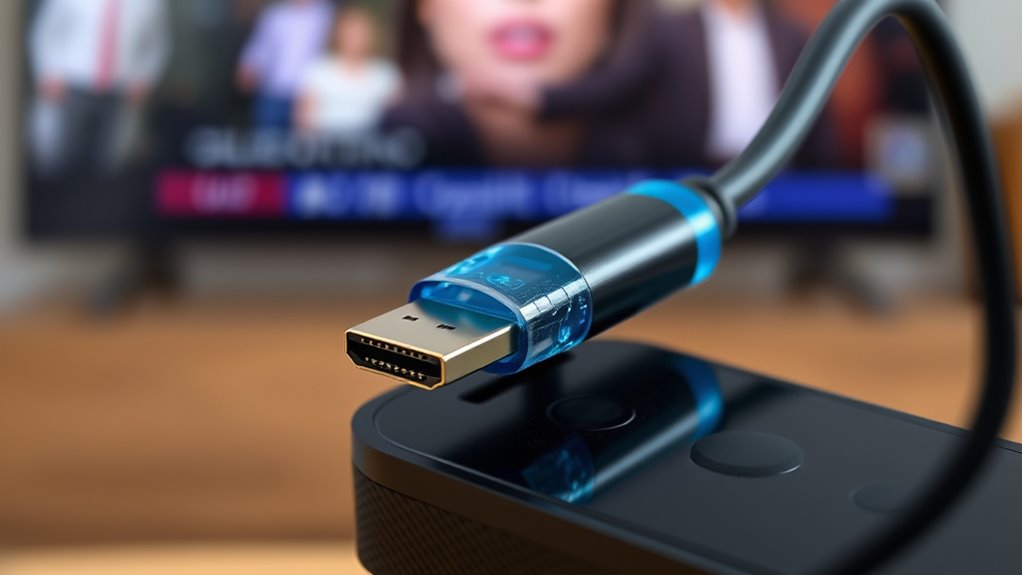
When you notice a delay between the sound and the picture on your streaming device, quick troubleshooting can often resolve the issue. First, restart your device and your TV to refresh the system. Check for software updates; outdated firmware can cause sync problems. If your streaming device has audio settings, try toggling options like “Audio Delay” or “Lip Sync” to adjust the timing. Disconnect and reconnect HDMI cables to ensure a secure connection, as loose or damaged cables can introduce delay. If you’re using external audio systems, verify their settings or try switching to internal speakers temporarily. Additionally, close any background apps or streams that might be hogging bandwidth, as network congestion can impact audio processing. These steps can help realign your audio and video quickly. Ensuring proper audio calibration can also improve overall sync performance. Regularly updating your device’s firmware can prevent future sync issues and maintain optimal performance. Paying attention to device compatibility can also reduce the likelihood of persistent delays. Being aware of your device’s power supply needs and ensuring it’s properly connected can also prevent performance hiccups that contribute to audio lag. For optimal results, consider using a dedicated audio device designed for better audio-video synchronization.
external soundbar with adjustable delay
As an affiliate, we earn on qualifying purchases.
As an affiliate, we earn on qualifying purchases.
Adjusting Audio Settings on Your Smart TV or Home Theater System
To fix lip sync issues, you need to adjust your TV or home theater’s audio settings. You can sync audio with video, modify the audio delay, and optimize the sound output for the best experience. These tweaks help create a seamless viewing and listening experience. Additionally, understanding your device’s industry trends can help you implement the most effective adjustments. Being aware of common sound calibration techniques can further improve your overall audio quality and synchronization. Incorporating latest audio technology can also enhance your setup and prevent future delay issues. Staying informed about audio processing advancements can help you select the best options for your equipment and ensure consistent performance. Exploring audio hardware options can also contribute to more precise synchronization and better sound quality overall.
Sync Audio With Video
If your audio and video are out of sync, adjusting the audio settings on your smart TV or home theater system can often resolve the problem. Start by accessing your device’s audio menu, where you may find options like “Audio Sync” or “Lip Sync.” Use these settings to fine-tune the audio delay, usually by increasing or decreasing the delay value until the sound matches the video. Some TVs and receivers have a dedicated slider or numerical input for precise adjustments. Make small changes and test each time to avoid overcompensating. Once you notice the audio and video align perfectly, save your settings. Proper synchronization guarantees a more immersive viewing experience and minimizes distractions caused by lip sync issues. Additionally, understanding audio delay and how it impacts overall playback can help you troubleshoot more effectively, especially since signal processing can sometimes introduce latency that affects sync. Recognizing how hardware limitations influence delay can also lead to better adjustments and improved viewing quality. Being aware of source device settings and their effect on delay can further enhance your synchronization efforts.
Adjust Audio Delay Settings
Adjusting the audio delay settings on your smart TV or home theater system can effectively fix lip sync issues. Most devices have a dedicated menu or settings option to modify audio delay. Start by accessing your device’s audio or sound settings. Look for options labeled “audio delay,” “lip sync,” or “audio sync.” Use the provided slider or buttons to increase or decrease the delay until the audio matches the video perfectly. It’s best to make small adjustments and test after each change. Some TVs let you set different delay times for various input sources, so verify you’re adjusting the correct one. Once you find the ideal setting, save your changes. This simple tweak can considerably improve your viewing experience by synchronizing sound with on-screen action.
Optimize Sound Output
Optimizing sound output on your smart TV or home theater system guarantees clear, balanced audio that enhances your viewing experience. Start by selecting the correct audio output mode, such as PCM or Bitstream, to make certain compatibility with your sound system. Adjust the sound settings like bass, treble, and midrange to suit your preferences and room acoustics. Enable any built-in sound enhancements, like surround sound or dialogue clarity features, to improve audio quality. Check for auto volume controls and turn them off if they cause inconsistencies. If your system supports equalizer settings, fine-tune them to achieve the best sound balance. Properly configuring these settings minimizes audio distortions and ensures your audio aligns with the video, reducing lip sync issues and delivering a more immersive experience.
Using External Devices and Apps to Correct Lip Sync Issues

External devices and apps offer practical solutions for fixing lip sync issues without needing to plunge into complex settings. These tools can help you adjust audio delays quickly and effectively. For example, soundbars with built-in lip sync correction allow you to fine-tune audio delay directly on the device. Similarly, smartphone apps enable you to sync audio with video by adjusting delay settings easily. Here’s a quick comparison:
| Device/App | Functionality |
|---|---|
| External soundbar | Built-in lip sync adjustment |
| AV receiver | Delay settings for audio output |
| Smartphone apps | Customizable delay controls |
| Streaming device settings | Sync options for connected devices |
| HDMI audio extractor | Manual delay adjustments |
Using these external tools, you can correct lip sync issues more conveniently than diving into complex internal settings.
Preventive Measures to Maintain Perfect Audio-Video Sync
To prevent audio-visual sync issues from occurring in the first place, it’s essential to guarantee your equipment is properly set up and maintained. Regularly update your device firmware and software to fix bugs that could cause delays. Ensure your audio and video cables are high quality and securely connected to prevent signal loss. Adjust your display’s settings for ideal audio and video output, and calibrate your devices periodically. Keep your devices’ firmware and drivers current, and avoid using incompatible or outdated hardware. Additionally, maintain proper room lighting and minimize external interference that could disrupt signal quality.
Regularly update and calibrate your equipment to prevent audio-visual sync problems.
- Use high-quality cables and connectors
- Keep firmware and software up to date
- Calibrate audio and video settings regularly
- Minimize interference from other electronics
- Maintain proper device placement
Frequently Asked Questions
Can Hardware Upgrades Resolve Persistent Audio Delay Issues?
Yes, hardware upgrades can resolve persistent audio delay issues. Upgrading components like your sound card, AV receiver, or HDMI cables can improve signal processing and reduce lag. Additionally, investing in a faster processor or more memory can enhance overall performance. Make sure your hardware is compatible with your system and properly configured. These upgrades often provide a noticeable improvement, making your audio sync seamlessly with your video.
How Does Room Acoustics Affect Audio and Video Synchronization?
Did you know that room acoustics can impact audio and video sync by up to 30 milliseconds? You might notice lip sync issues if your room has poor acoustics, like echoes or uneven sound distribution. These acoustic problems can delay audio signals, making them out of sync with the video. To fix this, consider adding sound-absorbing panels or rearranging furniture to improve sound quality and synchronization.
Are There Specific Content Types More Prone to Lip Sync Problems?
You’ll find that dialogue-heavy content like movies, TV shows, and live broadcasts are more prone to lip sync problems. These formats rely heavily on precise audio-visual alignment for an immersive experience. When audio processing or transmission delays occur, it’s more noticeable with speech because your brain expects lips and sounds to match perfectly. To fix this, try adjusting your device’s audio delay settings or update your playback equipment.
What Are the Signs of Hardware Damage Causing Sync Issues?
When hardware gets damaged, you’ll notice clear signs like persistent audio lag, distorted sound, or flickering video. If your device suddenly stops syncing, makes strange noises, or if the picture quality drops unexpectedly, it’s a sign trouble’s brewing. Don’t ignore these signs—you don’t want to put all your eggs in one basket. Quick action can save your device from further damage and restore perfect sync.
How Often Should I Update My Device Firmware to Prevent Delays?
You should update your device firmware as often as recommended by the manufacturer, typically every few months or when a new update is released. Regular updates fix bugs, improve performance, and enhance compatibility, which helps prevent delays. Check your device settings or manufacturer’s website regularly, and enable automatic updates if available. Staying current with firmware guarantees your device runs smoothly and reduces the risk of sync issues caused by outdated software.
Conclusion
To keep your audio and video perfectly synced, regularly check your device settings and stay updated with the latest firmware. Did you know that about 70% of viewers experience lip sync issues at least once a month? By troubleshooting promptly and taking preventive steps, you can enjoy a seamless viewing experience. Don’t let audio delays ruin your entertainment—stay proactive, and you’ll always have crisp, synchronized sound and visuals.
Halloween Picks
halloween
As an affiliate, we earn on qualifying purchases.