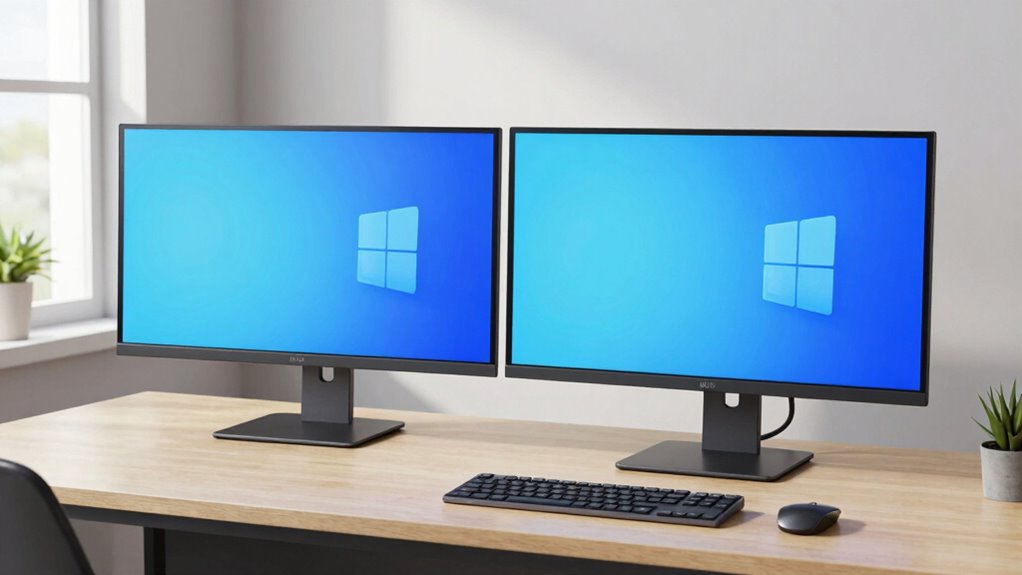

To prevent a cramped feel with dual monitors, position them at eye level and use adjustable arms for ideal spacing. Keep the bezels slim to maximize screen space and create a seamless view. Use cable clips to tidy cords and reduce clutter, while designing your workspace with designated zones for different tasks. Maintain an ergonomic setup with wrist rests and proper height alignment. Keep your desk organized and minimalist—if you want to learn more, you’ll find helpful tips ahead.

Turn your quiet moments into listening time
- Thousands of audiobooks, podcasts and originals
- Listen on your phone, tablet or Echo — also offline
- Cancel anytime
Key Takeaways
- Use slim-bezel monitors mounted on adjustable arms for seamless, space-efficient viewing.
- Position monitors at eye level with slight angles to maximize space and reduce visual clutter.
- Implement effective cable management to keep cords tidy and prevent a cramped appearance.
- Create designated zones for each monitor and minimize desk clutter for an open, organized workspace.
- Opt for minimalist desk designs and ergonomic accessories to enhance comfort and perceived spaciousness.
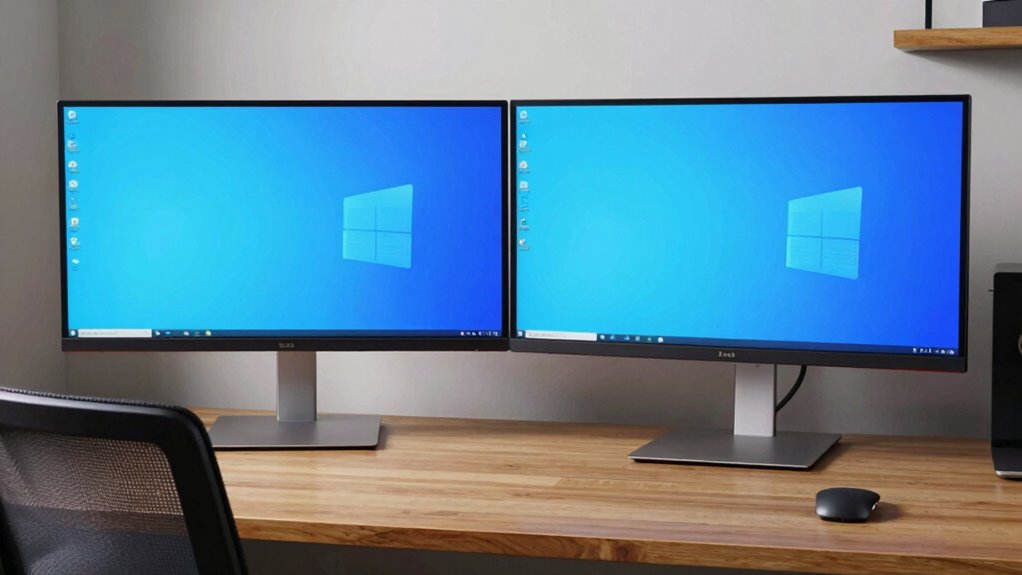
Setting up a dual monitor workstation can considerably boost your productivity and streamline your workflow. When you arrange your monitors thoughtfully, you can work more efficiently without feeling overwhelmed or cramped. The key is to prioritize ergonomic positioning, ensuring your screens are at eye level and at a comfortable distance. This reduces neck and eye strain, making it easier to focus on your tasks for longer periods. Position the monitors so that they form a slight angle toward you, creating an immersive workspace that feels natural and inviting. Proper height alignment is essential—your top line of text should be at or just below eye level to prevent you from tilting your head up or down.
Optimally position monitors at eye level and a slight angle to boost comfort and productivity.
Cable management also plays a fundamental role in creating a clean, organized setup that doesn’t contribute to a cluttered or cramped feeling. Use cable clips or sleeves to route cords neatly along the back of your desk or monitor stands. This not only enhances the aesthetic but also minimizes distractions and potential tangles. When cables are well-managed, your workspace feels open and accessible, which can greatly improve your overall comfort and focus. Keep power strips and accessories close but out of sight, so they don’t interfere with your line of sight or workspace flow. Additionally, choosing monitors with slim bezels maximizes screen real estate without increasing physical footprint.
To avoid that cramped feeling, choose monitors with slim bezels, which maximize screen real estate without increasing physical footprint. Dual monitors with thin borders allow you to view content across screens seamlessly, giving the illusion of a larger workspace. Additionally, consider mounting your monitors on adjustable arms; this way, you can customize the height, tilt, and distance for each screen. Such flexibility lets you create a layout that feels spacious rather than crowded, even if your desk isn’t massive. When positioning your monitors, leave enough space to comfortably rest your arms and wrists, and keep your keyboard and mouse within easy reach. This maintains ergonomic positioning while preventing you from feeling boxed in. Incorporating ergonomic accessories like wrist rests or adjustable stands can further enhance comfort during long work sessions. Moreover, choosing a minimalist desk design can help reduce visual clutter, creating a more open and inviting environment.
Creating designated zones for different tasks can also help keep your workspace organized and reduce clutter, making your monitor setup feel more open. Finally, consider desk organization strategies to optimize your workspace further by reducing unnecessary items and creating designated zones for different tools. Lastly, clear your desk of unnecessary clutter to open up more space. A tidy surface gives the impression of a larger workspace and makes it easier to move or shift monitors when needed. With strategic cable management, ideal monitor placement, and a clutter-free environment, your dual monitor setup will feel expansive and comfortable—no cramped feeling here. By paying attention to these details, you’ll enjoy a workspace that’s both efficient and inviting, supporting your productivity without sacrificing comfort.
Products Worth Considering

iRobot Roomba 105 Vac Robot Vacuum

Hisense 85 U6 Pro Series Mini-LED ULED 4K UHD HDR Gaming AI Smart Fire TV (85U6SF Pro)

Shark AI Ultra Robot Vacuum with Self-Empty Base
As an affiliate, we earn on qualifying purchases.
Frequently Asked Questions
How Do I Prevent Glare on Dual Monitors?
To prevent glare on your dual monitors, start by adjusting the screen brightness to match your room’s lighting. Use anti-glare filters on your screens—they’re easy to install and reduce reflections effectively. Position your monitors so that light sources, like windows or lamps, aren’t directly behind or in front of them. Also, consider using matte screens or repositioning your workspace to minimize glare, making your dual setup more comfortable.
What Are the Best Mounting Options for Dual Setups?
Imagine transforming your workspace with the perfect setup—your secret weapon begins with the right mounting options. A sturdy mounting arm offers flexible positioning, letting you easily adjust screens for ideal comfort. For a sleek look, a wall mount keeps monitors flush against the wall, saving space and reducing clutter. Both choices prevent cramping, improve ergonomics, and give your dual monitor setup a clean, professional appearance that’s tailored to your needs.
How Do I Optimize Lighting for Dual Monitors?
To optimize lighting for dual monitors, start with ambient lighting that reduces glare and minimizes eye strain, like soft overhead lights. Add task lighting, such as adjustable desk lamps, to illuminate your workspace without causing reflections on your screens. Position lights to avoid direct glare and reflections, ensuring your monitors remain clear. This balance creates a comfortable, well-lit environment that enhances focus and reduces eye fatigue.
Can Dual Monitors Cause Eye Strain?
Yes, dual monitors can cause eye strain if you’re not careful. You might experience discomfort from prolonged exposure to blue light and screen flickering. To prevent this, use blue light filters or glasses, adjust your monitor settings, and take regular breaks following the 20-20-20 rule. Proper lighting and positioning also help reduce eye fatigue, ensuring you stay comfortable during long work sessions.
What Software Helps Manage Multiple Screens Effectively?
Think of your screens as a symphony orchestra—each monitor playing its part perfectly. Software like DisplayFusion or UltraMon acts as the conductor, helping you manage your workspace organization and screen calibration seamlessly. They let you create custom layouts, switch between profiles effortlessly, and align your displays for smooth workflows. With these tools, you’ll keep your dual monitors in harmony, boosting productivity without feeling cramped or disorganized.
Conclusion
Setting up dual monitors doesn’t have to feel cramped; with the right arrangement, you can boost productivity and enjoy a more spacious workspace. Did you know that users with dual monitors are 18% more productive than those with just one? By maximizing your desk space and choosing the right monitor sizes, you’ll create a comfortable, efficient environment that keeps your workflow smooth and clutter-free. Embrace the setup that works best for you and watch your efficiency soar.