Many dual monitor docks depend on DisplayLink technology, which can cause performance issues like flickering, lag, and temporary disconnects. These problems often slow down your workflow and require frequent driver updates, leading to added frustration. Compatibility with your OS and hardware may also become a concern, making stability unpredictable. If you keep exploring, you’ll discover smarter solutions that help avoid these common pitfalls and improve your workspace.

Give the gift of listening to someone you love
- Choose a 1-, 3-, 6- or 12-month membership
- They pick the audiobooks they love
- Easy to send by email
Key Takeaways
- DisplayLink docks depend on drivers, which can cause performance issues like flickering, lag, and compatibility problems.
- Frequent driver updates and potential disconnects make DisplayLink-based setups less reliable over time.
- Wired connections provide more stable performance than DisplayLink’s software-dependent video transmission.
- Wireless display support is limited in DisplayLink docks, affecting cable-free workspace options.
- Choosing docks with integrated wireless or reliable wired connections avoids the pitfalls of DisplayLink technology.
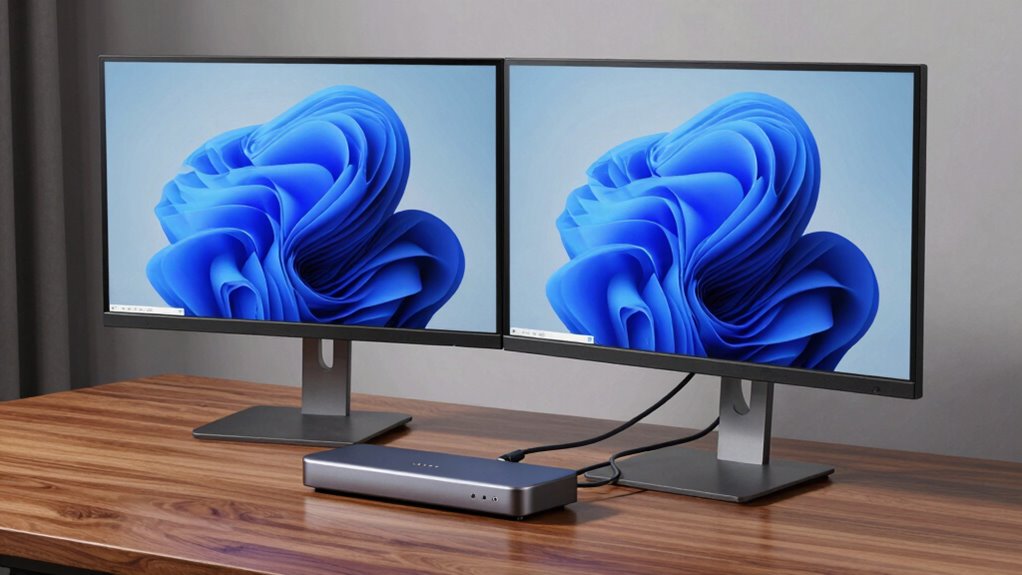
Have you ever wondered how to boost your productivity with minimal hassle? One effective way is by setting up a dual monitor workspace, but the key lies in choosing the right dock. Dual monitor docks can streamline your workflow, giving you more screen real estate without cluttering your desk. The challenge is finding a solution that offers seamless wireless connectivity and supports an ergonomic setup, so you can work comfortably for hours. Many docks advertise ease of use, but the DisplayLink technology often turns out to be a trap. While it promises to simplify connecting multiple displays through a single dock, it also introduces a slew of issues that can hamper your productivity.
DisplayLink-based docks rely on software drivers to transmit video signals, which can lead to performance hiccups. You might experience screen flickering, lag, or even temporary disconnects, especially when running resource-intensive applications. These glitches are frustrating because they interrupt your workflow and force you to troubleshoot instead of focusing on your tasks. Plus, DisplayLink docks often require frequent driver updates, which can be a hassle to manage and sometimes lead to compatibility problems with your operating system or other hardware. This ongoing maintenance can undermine the very convenience you sought in the first place. Additionally, the reliance on driver updates highlights the importance of understanding technology compatibility when selecting a dock. Being aware of driver support can help you choose more stable options and avoid frequent disruptions. Moreover, some users may not be aware that software driver dependency can significantly impact the overall stability of their multi-monitor setup. To mitigate these issues, some users opt for docks that utilize alternative technologies, though these may come with their own limitations.
Another pitfall is that many DisplayLink docks do not support wireless connectivity directly, forcing you to rely on wired connections that can clutter your workspace. This defeats the purpose of creating a clean, ergonomic setup where cables don’t get in the way. If wireless connectivity is a priority, you’ll need to look for docks that specifically support wireless display protocols or consider alternative solutions. For example, some docks now incorporate wireless display support, which can help eliminate cables and improve your setup’s overall neatness. The right dock should enable you to connect effortlessly without sacrificing stability or quality. It should also help you position your monitors ideally, promoting an ergonomic setup that reduces strain on your eyes, neck, and back. When selecting a dock, consider the overall compatibility factors to ensure it integrates smoothly with your existing hardware and software environment.
Choosing a dual monitor dock that genuinely supports your needs means doing a bit of research. Avoid docks that depend solely on DisplayLink technology unless you’re prepared for potential issues and ongoing driver management. Instead, opt for docks that offer reliable wired connections or integrated wireless display support from reputable brands. A good dock will enhance your workspace, making it easier to switch between tasks and increasing your overall efficiency. Keep in mind, the goal is to make your workspace as comfortable and productive as possible, and the right dual monitor dock can be a game-changer—just steer clear of the DisplayLink trap.
Products Worth Considering

Roborock Qrevo S Pro Robot Vacuum and Mop with Multifunctional Dock

Dyson Cyclone V10 Origin Cordless Vacuum

Ring Alarm 5-Piece Home Security Kit
As an affiliate, we earn on qualifying purchases.
Frequently Asked Questions
Do All Laptops Support Dual Monitor Docks Seamlessly?
Not all laptops support dual monitor docks seamlessly. Your laptop’s compatibility depends on its hardware and ports, especially for docking stations with limitations like DisplayLink technology. You need to check if your device has the necessary USB or Thunderbolt ports and confirm your graphics card can handle multiple displays. Some laptops may require specific drivers or firmware updates to work properly, so always verify compatibility before purchasing a dual monitor dock.
Can Dual Monitor Docks Cause Overheating Issues?
Did you know that over 30% of users report overheating issues with dual monitor docks? Yes, they can cause overheating due to hardware limitations and inadequate power management. When the dock pushes your laptop’s graphics or power supply beyond its capacity, it heats up faster. So, make sure your dock and laptop are compatible, and use proper cooling solutions to prevent overheating and maintain peak performance.
Are There Compatibility Issues With Specific Operating Systems?
Yes, you might face compatibility issues with certain operating systems when using dual monitor docks. Driver conflicts can arise, especially if the dock’s drivers aren’t fully compatible with your OS version. To avoid this, make sure you regularly check for firmware updates and driver updates from the manufacturer. Keeping everything up-to-date helps improve stability and reduces the likelihood of issues related to compatibility with your operating system.
How Do I Troubleshoot Display Connectivity Problems?
Think of troubleshooting display connectivity like fixing a garden hose; any kink or clog can block the flow. First, check your display resolution settings to guarantee compatibility, then inspect your cables for quality and secure connections. Swap out cables if needed, and restart your device. Updating drivers and firmware can also clear up issues. These steps help guarantee your monitors work seamlessly, preventing connection problems before they grow.
What Are the Security Considerations With Displaylink Technology?
You should be aware that displayLink technology raises security concerns like potential firmware vulnerabilities and the need for strong encryption protocols. Firmware vulnerabilities can be exploited if not regularly updated, so keep your device firmware current. Additionally, guarantee your data transmitted through displayLink docks is protected by robust encryption protocols to prevent unauthorized access, especially in sensitive or shared environments. Regularly review security settings and updates to stay protected.
Conclusion
As you sit back, gaze at your dual monitors shimmering side by side, you might feel the promise of seamless productivity. But beware—the DisplayLink trap can turn that dream into a tangled web of frustration. Don’t let faulty connections or laggy displays drown your focus. Instead, choose wisely, like a sailor steering a calm, clear sea. With the right dock, you’ll see your workspace as a horizon of endless possibility, not a storm of tech headaches.