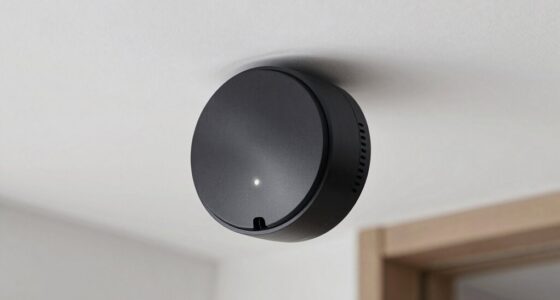
To protect your family, start by securing your home network with strong passwords and enabling device encryption. Use parental controls to manage content and set time limits, ensuring safe internet use for kids. Keep software updated regularly and change passwords periodically to prevent unauthorized access. Educate your family about online safety and stay proactive with security measures, like network monitoring tools. Keep exploring for more tips to build a safer digital environment for everyone.

Turn your quiet moments into listening time
- Thousands of audiobooks, podcasts and originals
- Listen on your phone, tablet or Echo — also offline
- Cancel anytime
Key Takeaways
- Enable device encryption to protect sensitive data on all family devices.
- Set strong, unique Wi-Fi passwords and change them regularly to prevent unauthorized access.
- Use parental controls to filter content, set time limits, and monitor online activity for children.
- Keep all devices and router firmware updated to patch security vulnerabilities.
- Educate family members about online safety and cybersecurity best practices regularly.
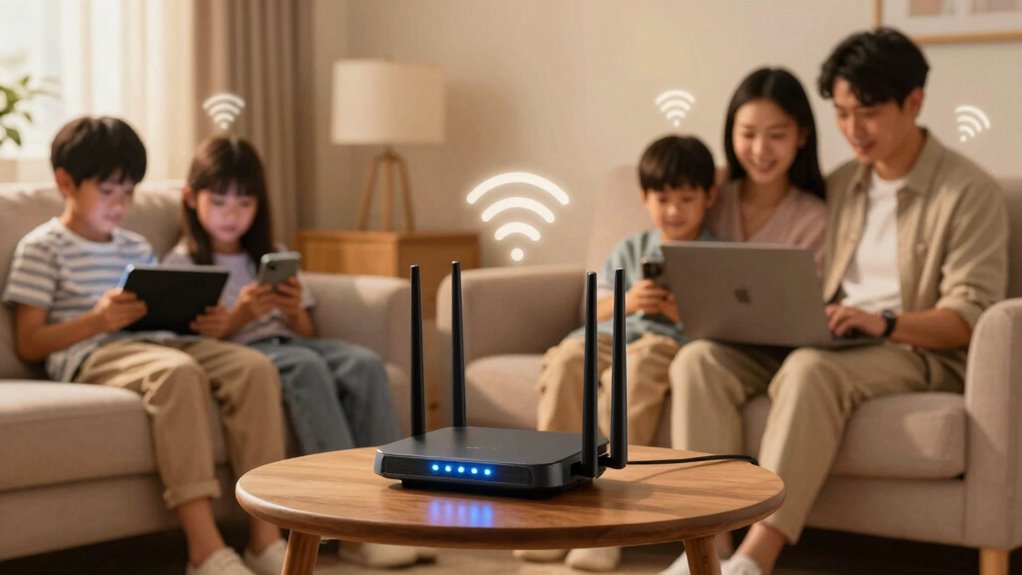
Are you confident your home network is secure? If not, it’s time to take a closer look at how you’re protecting your family’s digital space. A strong home network acts as the foundation for safe internet use, especially when kids are involved. One of the first steps you should consider is enabling device encryption on all your devices. Device encryption scrambles your data, making it unreadable to anyone who doesn’t have the right decryption key. This means that even if someone manages to access your network or steal a device, your sensitive information—like passwords, financial details, or personal messages—remains protected. Many modern devices come with encryption options built-in, so take a moment to activate those settings. Doing so adds a crucial layer of security and helps prevent unauthorized access.
In addition to encryption, setting up parental controls on your home router or individual devices is essential. Parental controls let you manage what content your children can access online, set time limits for internet use, and monitor their activity. This way, you can create a safer online environment tailored to your family’s needs. When configuring parental controls, be transparent with your children about the reasons behind these restrictions—it’s about keeping them safe, not spying on them. Many routers now offer built-in parental controls that are easy to configure, providing options like website filtering, usage schedules, and activity reports. If your router lacks these features, you can also install parental control software or apps on individual devices. Regularly updating your devices’ software and changing Wi-Fi passwords also strengthen your network security. Remember, cyber threats evolve, so staying proactive is key. Considering device encryption as a fundamental security measure can significantly reduce the risk of data breaches. Cybersecurity practices are vital to maintaining your family’s privacy in an increasingly digital world. Educating your family about online safety helps foster responsible digital habits and further enhances your security efforts. Being aware of potential cyber threats and how to respond to them can help you stay one step ahead of cybercriminals. Incorporating network monitoring tools can also help you detect suspicious activity early. If you invest in these security measures now, you’ll create a safer online environment for your family and reduce the risk of digital mishaps. Ultimately, protecting your home network is an ongoing process, but with these foundational steps, you’re well on your way to a more secure digital home.
home Wi-Fi router with parental controls
As an affiliate, we earn on qualifying purchases.
As an affiliate, we earn on qualifying purchases.
Frequently Asked Questions
How Often Should I Update My Home Router’s Firmware?
You should update your home router’s firmware as often as the manufacturer recommends, typically every few months or when a new update is released. Regular firmware updates improve network stability by fixing bugs and security vulnerabilities. Staying current guarantees your network runs smoothly and stays protected against threats. Check your router’s settings or manufacturer’s website regularly to stay informed about new firmware updates and keep your network secure.
What Are the Signs of a Compromised Home Wi-Fi Network?
You might notice signs of a compromised Wi-Fi network when you see unauthorized access or unusual activity, like slow internet or unknown devices connected. Did you know that over 60% of home networks experience some form of intrusion? These signs suggest someone may be spying or misusing your connection. Stay alert, change your passwords regularly, and monitor connected devices to keep your network secure and protect your family’s privacy.
Can I Limit Internet Access for Specific Devices?
Yes, you can limit internet access for specific devices through device management features on your router. Most routers allow you to set access restrictions, such as scheduled internet time or blocking certain devices entirely. By accessing your router’s settings, you can easily manage which devices connect and control their internet usage, helping you maintain a secure and balanced home network. This approach keeps your family safe and prevents overuse or unauthorized access.
How Do I Secure Smart Home Devices From Hacking?
Imagine your smart home devices as guardians in a fortress—strong, yet vulnerable. To secure them against hacking, enable device encryption so your data stays private. Additionally, create network segmentation, like building walls within your network, isolating smart devices from your personal computers. Regularly update device firmware and passwords, and disable unnecessary features. These steps transform your smart home into a well-guarded sanctuary, shielding your family from digital intruders.
What Should I Do if I Forget My Wi-Fi Password?
If you forget your Wi-Fi password, start with password recovery options on your router. Log into your router’s admin panel using its IP address and check for the password reset or display feature. If that doesn’t work, perform network troubleshooting by resetting your router to factory settings—just remember, you’ll need to set up your network again afterward. Keep your new password safe to avoid future headaches.
device encryption software for Windows/Mac
As an affiliate, we earn on qualifying purchases.
As an affiliate, we earn on qualifying purchases.
Conclusion
By taking these simple steps, you’re building a fortress around your family’s digital life. Imagine your home network as a garden; just like you’d protect fragile plants from pests and weeds, securing your Wi-Fi keeps unwanted intruders out. When you update passwords and enable security features, you’re planting strong roots that grow resilience. With each small action, you create a safe space where your family can enjoy the internet’s benefits without worry, like a well-tended garden in full bloom.
home network security monitoring tools
As an affiliate, we earn on qualifying purchases.
As an affiliate, we earn on qualifying purchases.
As an affiliate, we earn on qualifying purchases.
Halloween Picks
halloween
As an affiliate, we earn on qualifying purchases.