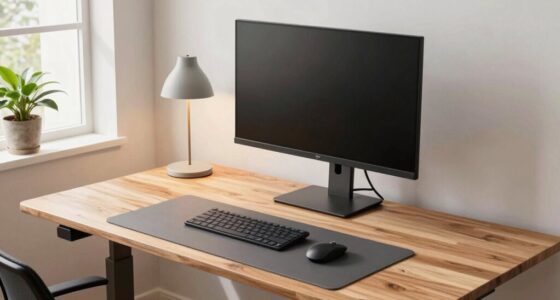
To relieve neck strain, position your monitor arm so the monitor is at eye level, with the top third aligned with your eyes. Keep the monitor about an arm’s length away for comfortable focus. Adjust the arm’s height, tilt, and swivel to keep your head centered and avoid tilting or turning your neck. Proper placement supports good posture and reduces discomfort, helping you stay comfortable during long hours. If you want to know more, you’ll find useful tips below.

Turn your quiet moments into listening time
- Thousands of audiobooks, podcasts and originals
- Listen on your phone, tablet or Echo — also offline
- Cancel anytime
Key Takeaways
- Position the monitor so the top third is at eye level to maintain neutral neck posture.
- Adjust the monitor height, tilt, and swivel to keep the screen directly in front of you.
- Place the monitor about an arm’s length away to reduce eye and neck strain.
- Ensure the monitor is centered to prevent head turning and lateral neck tension.
- Use ergonomic adjustments to easily modify monitor position as needed for comfort.

Have you ever experienced neck strain after hours at your desk? If so, you’re not alone. Many people overlook the importance of proper monitor placement, which can lead to discomfort and even long-term health issues. The key to preventing this is assuring your monitor arm is positioned correctly to promote an ergonomic posture. When your monitor is at the right height and distance, it helps you maintain a natural, relaxed neck position, reducing tension and fatigue. Achieving eye level alignment is essential here; your monitor should be directly in front of you, with the top of the screen roughly at your eye level. This way, you won’t have to tilt your head up or down, which strains your neck muscles over time.
Proper monitor height and position prevent neck strain and promote ergonomic comfort.
Adjusting your monitor arm is a straightforward step toward better posture. Most monitor arms are flexible enough to allow for height, tilt, and swivel adjustments. Start by elevating the monitor so that your eyes gaze naturally at the top third of the screen. This position minimizes the need to crane your neck upward or downward. When your monitor is aligned with your eye level, your head remains centered over your shoulders, helping you avoid awkward angles that cause discomfort. Furthermore, positioning your monitor directly in front of you reduces the need for constant head turning, which can lead to muscle strain and fatigue. Proper monitor arm placement can also help prevent issues related to poor ergonomic setup, which are common in many workspaces. Incorporating ergonomic principles into your workspace setup is crucial for long-term comfort and health. A well-configured monitor setup supports overall posture alignment, decreasing the risk of musculoskeletal problems. Paying attention to ergonomic workspace design can further enhance comfort and prevent strain in other areas of your body.
In addition, consider the distance of your monitor from your eyes. Ideally, it should be about an arm’s length away. This distance ensures that your eyes don’t have to strain to focus on the screen, decreasing eye fatigue as well. When your monitor is properly placed, your shoulders stay relaxed, and your back remains supported by an ergonomic chair. All these elements work together to foster a healthy, comfortable working environment. Remember, your monitor arm should allow for quick and easy adjustments because your comfort needs may change throughout the day or as you switch between tasks.
In short, the placement of your monitor arm directly influences your neck health. Proper eye level alignment and ergonomic posture aren’t just buzzwords—they’re practical strategies to make your workspace more comfortable and reduce the risk of neck pain. Investing a few minutes to adjust your monitor arm correctly can have a lasting impact on your comfort and well-being, helping you work more efficiently without the distraction of discomfort or pain.
As an affiliate, we earn on qualifying purchases.
Frequently Asked Questions
How Often Should I Adjust My Monitor Arm Position?
You should adjust your monitor arm position whenever you notice discomfort or after changing your workspace setup. Regularly tweaking your ergonomic accessories, like monitor arms, guarantees ideal desk customization for neck relief. Aim to check and readjust at least once a week or when your posture shifts. Staying proactive helps maintain proper alignment, reduces strain, and keeps your workspace ergonomic, preventing long-term discomfort.
Can Monitor Arm Placement Improve Overall Posture?
Absolutely, proper monitor arm placement can be a game-changer for your posture. Think of ergonomic accessories like monitor arms as the backbone of good workspace organization, guiding your body into healthier habits. When you position your monitor correctly, it aligns your neck and spine, reducing strain. This simple adjustment helps you maintain a natural, comfortable posture throughout the day, making your workspace more supportive and less of a pain point.
What Signs Indicate My Monitor Is Improperly Positioned?
If your monitor is improperly positioned, you’ll notice signs like neck strain, eye discomfort, or frequent adjusting of your screen. Ergonomic accessories can help, but if your monitor causes screen glare or requires you to lean forward, it’s a clear sign it’s not set up correctly. Adjust your monitor’s height and angle so that your eyes are level with the top of the screen, reducing strain and improving comfort.
Are There Specific Monitor Arm Types Best for Neck Relief?
Like a trusty sidekick, an adjustable monitor arm is your best bet for neck relief. Look for one with excellent monitor compatibility and smooth arm adjustability, so you can easily position your screen at eye level. A flexible arm allows you to tilt, swivel, and extend, reducing strain. This way, you stay comfortable whether you’re working or gaming, avoiding the dreaded neck ache of a poorly positioned monitor.
How Do I Prevent My Monitor From Tilting or Drifting?
To prevent your monitor from tilting or drifting, regularly tighten the monitor arm’s adjustment screws and check for loose parts. Use ergonomic accessories like cable management clips to keep cords organized, reducing strain on the arm. Maintain good desk organization to guarantee stability and prevent accidental bumps. Adjust the monitor’s tension settings if available, and consider a high-quality monitor arm designed for durability, which helps keep your display steady throughout your workday.
As an affiliate, we earn on qualifying purchases.
Conclusion
Imagine your neck as a delicate garden, thriving when you tend to it carefully. When you position your monitor arm correctly, you’re watering that garden with comfort instead of strain. Studies show proper monitor placement reduces neck pain by up to 60%. Like a gardener rearranging tools for ease, you’re creating a workspace that nurtures your well-being. With mindful placement, you’ll cultivate comfort and keep your neck flourishing, day after day.
As an affiliate, we earn on qualifying purchases.
As an affiliate, we earn on qualifying purchases.
Halloween Picks
halloween
As an affiliate, we earn on qualifying purchases.