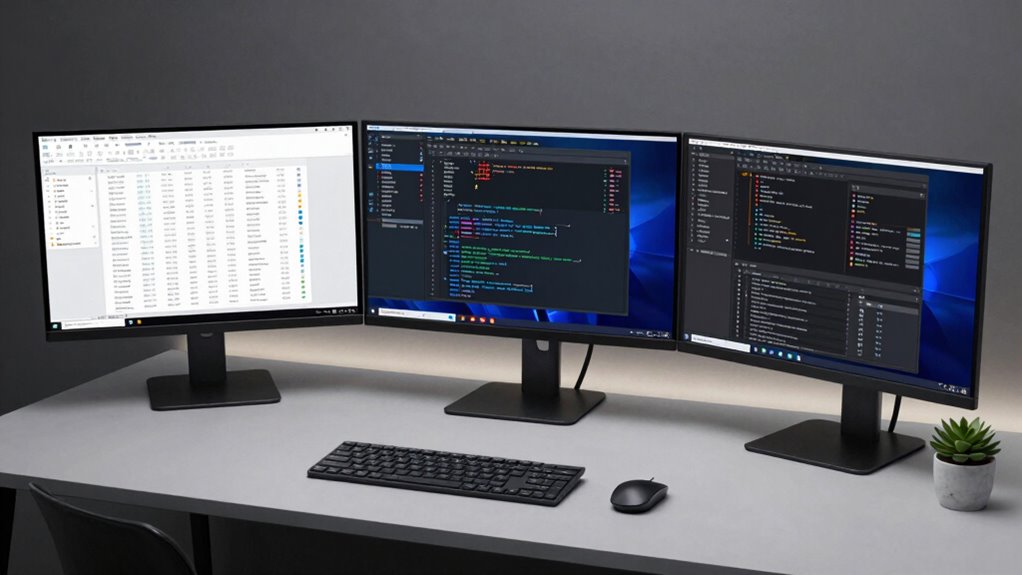

To boost your productivity with multiple monitors, arrange them strategically based on your tasks. You might opt for a horizontal setup for multitasking or a vertical stack for reading lengthy documents. Curved ultrawide or wrap-around monitors enhance immersion, while modular and adjustable layouts offer flexibility for evolving needs. Position your primary screen straight ahead and angle side screens inward to reduce neck strain. Keep learning tips to create an optimized, personalized workspace that supports your workflow efficiently.
Listen free for 30 days with Audible
Thousands of audiobooks and originals — cancel anytime.
As an affiliate, we earn on qualifying purchases.
Key Takeaways
- Use a primary monitor directly in front at eye level, with side screens angled inward (~30°) for better focus and reduced neck strain.
- Arrange monitors at the same height to ensure seamless viewing and minimize head movement during multitasking.
- Optimize ergonomic positioning by adjusting monitor tilt and distance to promote comfortable posture and reduce eye fatigue.
- Implement flexible layouts with adjustable arms or modular setups for quick reconfiguration based on tasks or preferences.
- Incorporate curved ultrawide or wrap-around monitors to enhance immersion, reduce eye strain, and maximize workspace efficiency.

ErGear Single Monitor Arm, Fully Adjustable Monitor Mount for 13–34 Inch Screens, Fast Install Computer Monitor Stand with Tool-Free VESA Mount, Cable Management, Holds 19.8 lbs, Max VESA 100x100mm
- Compatibility: Fits 13–34 inch monitors up to 19.8 lbs
- VESA Support: Supports 75x75mm and 100x100mm patterns
- Durable Construction: Tested over 20,000 cycles for longevity
As an affiliate, we earn on qualifying purchases.
As an affiliate, we earn on qualifying purchases.
Basic Horizontal and Vertical Arrangements
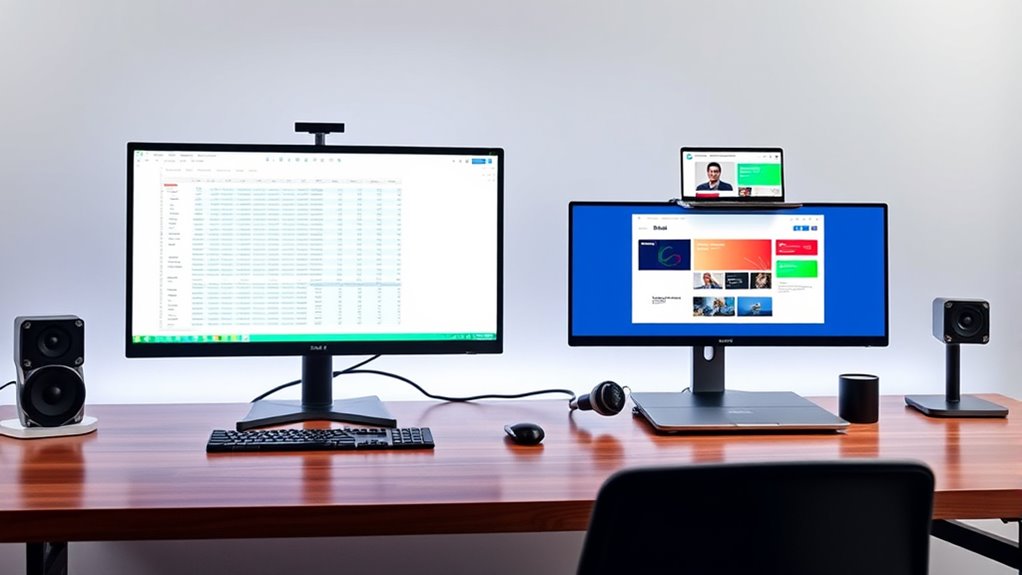
When setting up multiple monitors, the simplest and most common arrangements are horizontal and vertical layouts. In a horizontal setup, you place your monitors side by side, creating a wide, panoramic workspace. This configuration is perfect for multitasking tasks like coding, video editing, or browsing, where you need multiple windows open simultaneously. On the other hand, a vertical arrangement stacks monitors one above the other, offering a tall, narrow view. Vertical setups work well for tasks that involve reading long documents, coding, or data analysis, as they allow you to see more lines without scrolling. Both configurations are straightforward to implement and manage, making them ideal starting points. Choosing the Monitor arrangement that best suits your workflow and the space available on your desk can significantly enhance your productivity. Additionally, considering ergonomic setup principles can help reduce fatigue and improve comfort during extended work sessions. Proper placement of monitors in either layout can also prevent strain and promote better posture for long-term comfort. For optimal comfort, adjusting monitor height and angle to match your eye level is essential for maintaining good ergonomics. Incorporating adjustable stands or mounts can further improve viewing angles and overall comfort during prolonged use.
ErGear Single Monitor Arm, Fully Adjustable Monitor Mount for 13–34 Inch Screens, Fast Install Computer Monitor Stand with Tool-Free VESA Mount, Cable Management, Holds 19.8 lbs, Max VESA 100x100mm
- Compatibility: Fits 13–34 inch monitors up to 19.8 lbs
- VESA Support: Supports 75x75mm and 100x100mm patterns
- Durable Construction: Tested over 20,000 cycles for longevity
As an affiliate, we earn on qualifying purchases.
As an affiliate, we earn on qualifying purchases.
The Triple Monitor Setup
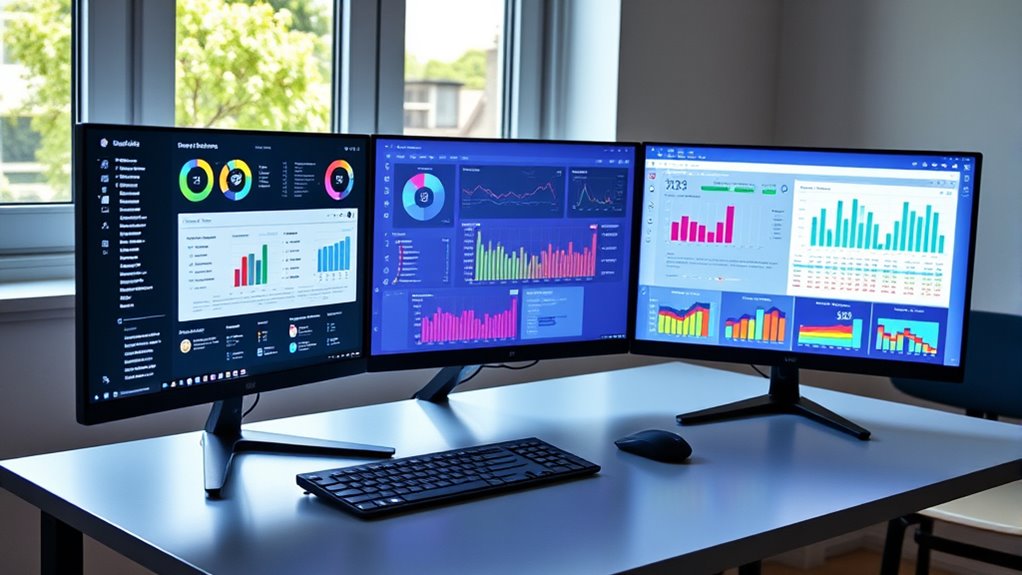
A triple monitor setup can boost your productivity by providing ample screen space for multitasking. To get the most out of it, you need to arrange the screens for ideal viewing angles that reduce neck strain. Proper positioning ensures comfort and efficiency during long work sessions. Additionally, considering ergonomic setup principles can help prevent discomfort and promote better posture while working with multiple monitors. Incorporating organized workspace strategies can further enhance your overall efficiency and make managing multiple screens more intuitive. Using simple tools like BTU and CADR quick‑calculators can also assist in optimizing your workspace environment for comfort and efficiency. Being aware of healthy habits such as regular breaks and proper monitor height can further improve your long-term comfort and productivity. Moreover, paying attention to lighting conditions can help reduce eye strain and improve overall visual comfort during extended use.
Optimal Screen Arrangement
Arranging three monitors for maximum productivity requires careful planning to create a seamless viewing experience. First, position the primary monitor directly in front of you at eye level to reduce neck strain. Then, arrange the side monitors at a slight angle, roughly 30 degrees, to keep all screens within your peripheral vision. To ensure a consistent viewing experience, it’s important to align monitors properly so all displays are at the same height and angle. Proper ergonomic setup is essential to support long-term comfort and health during extended work sessions. Maintaining a well-organized workspace can further improve focus and reduce distractions. To optimize your setup: 1. Place the main monitor centrally for focused tasks. 2. Angle side monitors inward for easy glanceability. 3. Keep all screens aligned at the same height to promote smooth transitions. Additionally, ensuring comfortable viewing angles can significantly reduce eye strain and fatigue. This arrangement minimizes head movement, reduces fatigue, and enhances multitasking efficiency, helping you work more comfortably and effectively.
Ergonomic Viewing Angles
Ensuring your monitors are positioned at ergonomic viewing angles can considerably reduce neck and eye strain during long work sessions. For a triple monitor setup, angle the side screens inward so you’re facing the center monitor directly. Keep all screens at eye level to avoid tilting your head up or down. The top of each monitor should be roughly level with your eyes, with a slight tilt back if necessary. Maintain a comfortable distance—about an arm’s length away—to prevent eye fatigue. Adjust the height and tilt so you’re viewing the screens with a relaxed neck and shoulders. Proper positioning minimizes strain and enhances focus, letting you work longer without discomfort. Being aware of ergonomic principles can help you optimize your workspace for comfort and productivity. Taking the time to set your monitors at the right angles makes a significant difference in your comfort and productivity. Additionally, incorporating adjustable monitor stands allows for more precise positioning tailored to your ergonomic needs. Ensuring consistent monitor alignment across all screens can further improve your workflow and reduce discomfort during extended use, especially when combined with regular breaks to rest your eyes and neck muscles.

Sceptre 34-Inch Curved Ultrawide WQHD Monitor (3440 × 1440), R1500, up to 180Hz/165Hz, DisplayPort x2, 99% sRGB, 1ms, Built-in Speakers, Machine Black, 2025 (C345B-QUT168)
- Fast Response Time: 1ms MPRT for smooth visuals
- Ambient Backcover Lighting: Colorful LED backlight design
- UltraWide WQHD Display: 3440 x 1440 resolution for detailed images
As an affiliate, we earn on qualifying purchases.
As an affiliate, we earn on qualifying purchases.
Curved and Ultrawide Configurations
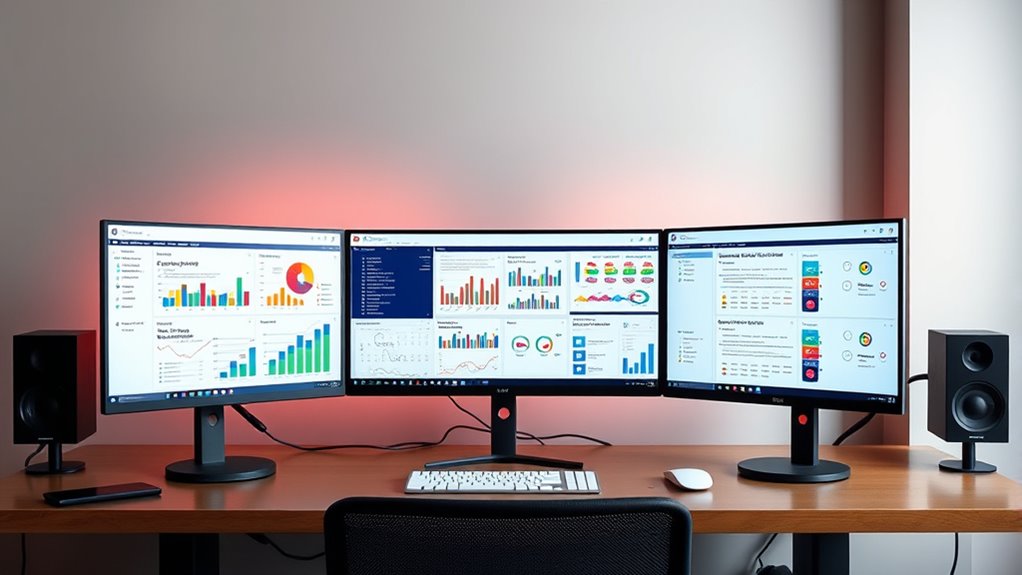
Curved and ultrawide monitors have gained popularity for their immersive experience and streamlined workspace. They help reduce eye strain by eliminating sharp edges and creating a natural viewing curve. When considering these setups, keep these points in mind:
Curved ultrawide monitors enhance immersion and reduce eye strain with seamless, space-saving designs.
- Enhanced immersion: The curved design wraps around your field of view, making you feel more engaged with your work or entertainment. Additionally, the natural viewing experience can improve focus during long work sessions. Their energy-efficient design can also contribute to a more sustainable workspace. Incorporating ergonomic principles can further enhance comfort during extended use. Understanding the visual ergonomics involved can help optimize your setup for better health.
- Reduced bezels: Ultrawide monitors minimize gaps between screens, providing a seamless visual experience for multitasking.
- Space efficiency: These monitors take up less desk space than multiple traditional monitors, freeing room for other gear.
- Ease of setup: Many curved and ultrawide monitors come with step-by-step assembly instructions to simplify installation and customization.
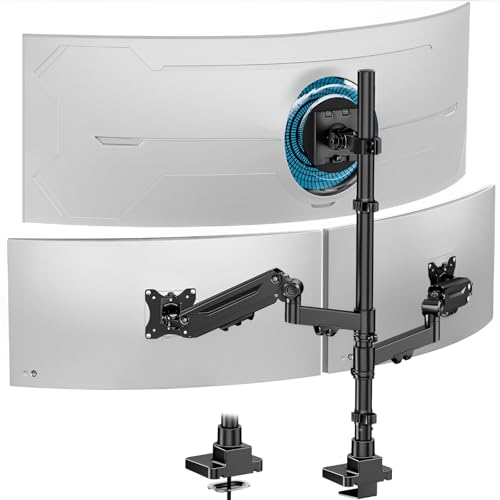
Triple Monitor Mount up to 49 inches, Fully Adjustable Heavy Duty 3 Monitor Arm with Gas Spring, Desk Mount for 3 Screens, C-Clamp & Grommet Base, Holds 44 lbs, Black
- Supports Ultrawide Monitors: Up to 49-inch center, 35-inch sides
- Heavy Duty Load Capacity: Holds up to 44 lbs per monitor
- Fully Adjustable Arms: Tilt, swivel, rotate, and height adjust
As an affiliate, we earn on qualifying purchases.
As an affiliate, we earn on qualifying purchases.
Stacked Monitors for Vertical Space
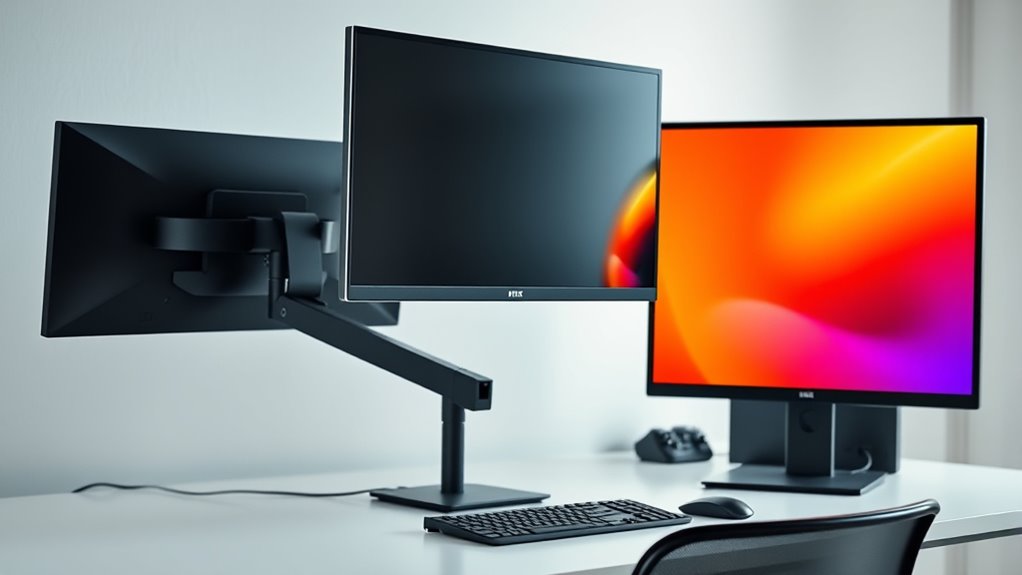
Stacked monitors are an excellent way to maximize vertical space on your desk, especially if you need multiple screens for different tasks. They save room and keep your workspace organized, making it easier to switch between applications. With vertical stacking, you can view long documents or code without scrolling excessively. Plus, it reduces horizontal clutter, freeing up desktop real estate. Consider how your workflow benefits from a clear, focused vertical arrangement. Here’s a quick look at the emotional impact of stacked monitors:
| Feelings You’ll Experience | Benefits You’ll See |
|---|---|
| Less clutter, less stress | Faster multitasking |
| Improved focus | Better space utilization |
| Enhanced organization | Increased productivity |
This setup keeps everything within reach, boosting efficiency and reducing frustration.
Modular and Adjustable Layouts
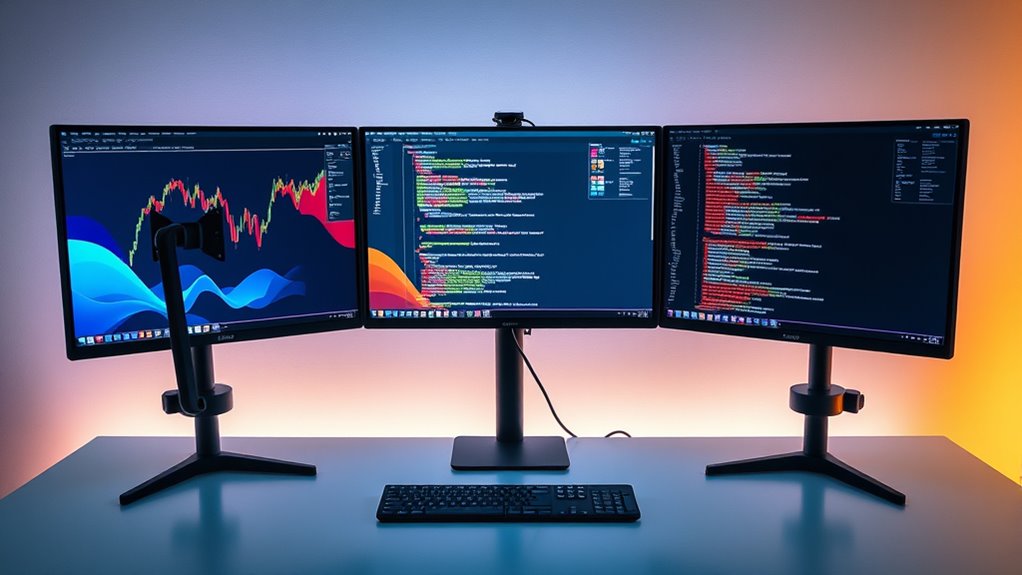
Modular and adjustable layouts take the benefits of vertical stacking a step further by offering flexible configurations tailored to your changing needs. With these setups, you can easily reconfigure your monitors for different tasks or workspace layouts. They often include components like adjustable arms, pivot mounts, and detachable modules. This adaptability means you can:
- Swap monitors between positions quickly for focused work or collaboration.
- Reconfigure the layout to accommodate different projects or workflows.
- Add or remove screens without hassle, ensuring your workspace evolves with your needs.
This flexibility helps you maximize productivity and comfort, making your multi-monitor setup truly dynamic. Instead of a static arrangement, you get a versatile environment that adapts seamlessly to your work style.
Creative and Custom Configurations
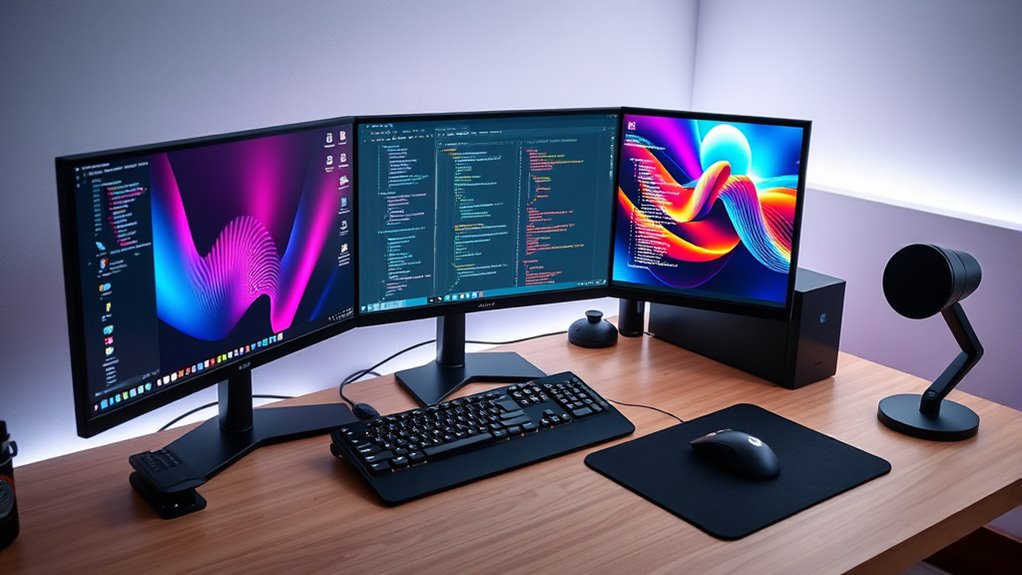
Creative and custom configurations empower you to design multi-monitor setups that reflect your unique workflow and style. You can experiment with different arrangements—like an eye-catching curved setup or a vertical stack—to optimize how you work and how your space looks. Custom mounts, angled monitors, and personalized spacing give you full control over comfort and efficiency. Think beyond standard layouts; integrate specialized hardware, colorful frames, or themed configurations that inspire creativity. This flexibility lets you prioritize tools, streamline tasks, and create an environment that motivates you. By tailoring your setup, you boost productivity while expressing your personality. The key is to blend functionality with aesthetics, ensuring your monitors work harmoniously together and enhance your overall workspace experience.
Frequently Asked Questions
How Do I Choose the Best Monitor Sizes for My Layout?
To select the optimal monitor sizes for your layout, consider your workspace and tasks. If you require detailed work like design or editing, opt for larger screens—27 inches or more. For general use, 24-inch monitors work well. Balance your monitor sizes to avoid clutter and guarantee comfortable viewing angles. Think about resolution too; higher resolutions provide sharper images, making your setup more efficient and enjoyable.
What Ergonomic Tips Improve Multi-Monitor Workstation Comfort?
Did you know that improper ergonomics can cause discomfort in up to 80% of office workers? To improve your multi-monitor workstation comfort, position your screens at eye level to prevent neck strain. Keep your monitors about an arm’s length away, and use an adjustable chair that supports your lower back. Take regular breaks, stretch often, and verify your keyboard and mouse are within easy reach to reduce fatigue.
Are There Software Tools to Manage Multiple Screens Effectively?
Yes, there are several software tools to help you manage multiple screens effectively. Tools like DisplayFusion and UltraMon let you organize windows, create custom monitor profiles, and switch between layouts easily. These programs improve your workflow by enabling quick window snapping, multi-monitor taskbars, and hotkeys, reducing clutter and boosting productivity. You’ll find that managing multiple monitors becomes seamless, allowing you to focus more on your work and less on technical adjustments.
How Do I Prevent Visual Fatigue in Multi-Monitor Setups?
To prevent visual fatigue in your multi-monitor setup, you should take regular breaks using the 20-20-20 rule—every 20 minutes, look at something 20 feet away for at least 20 seconds. Adjust your monitor brightness and contrast to match ambient lighting, and position screens to reduce glare and eye strain. Also, keep a proper distance from your screens, about arm’s length, ensuring your eyes are level with the top of the monitors.
What Are the Cost Implications of Advanced Multi-Monitor Configurations?
Sure, splurging on advanced multi-monitor setups might seem like investing in a spaceship, but it’s pretty straightforward—you’re paying for bigger screens, better graphics cards, and sturdy mounts. The costs add up quickly, especially if you aim for ultra-high resolutions or multiple displays. While it may seem expensive now, think of it as an investment in your productivity and sanity, rather than just a shiny upgrade.
Conclusion
Choosing the right multi-monitor layout is like composing a symphony—you need harmony and balance. Whether you prefer sleek horizontal lines or stacked verticals, the key is tailoring your setup to boost your productivity and suit your style. Experiment with curved screens or modular designs to find what works best for you. Remember, your workspace should be as dynamic as your ideas—creating a setup that sings your workflow into perfect tune.
Back to school Picks
back to school
As an affiliate, we earn on qualifying purchases.