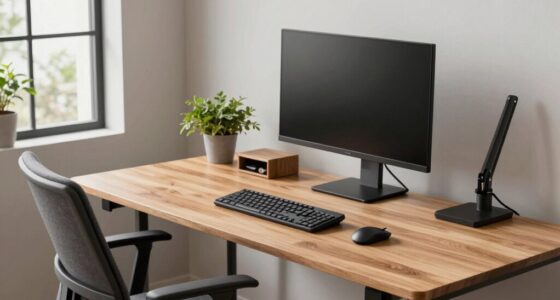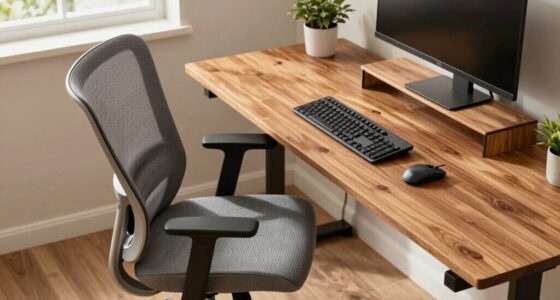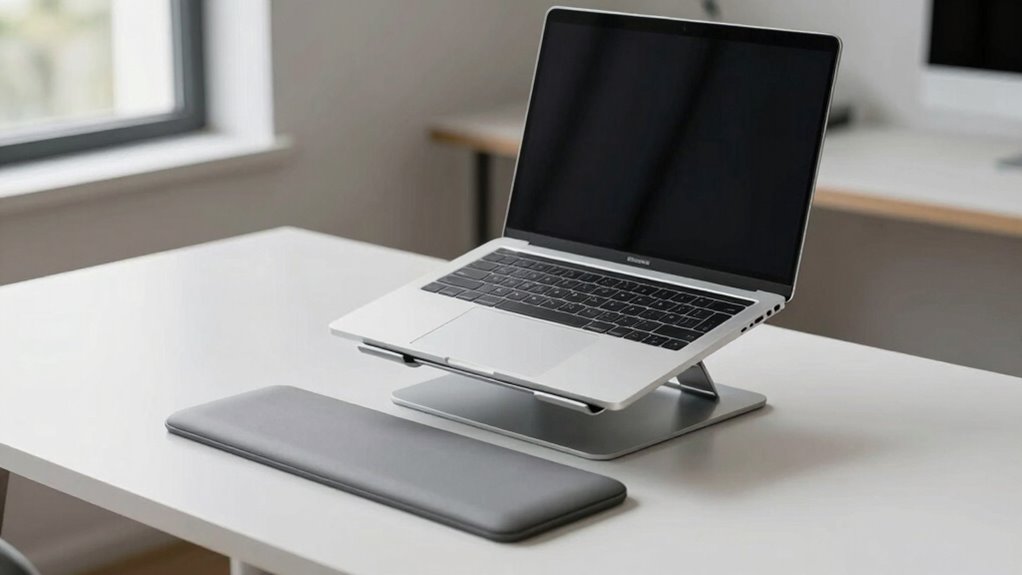

To optimize your laptop docking ergonomics, make certain your monitor and laptop are at eye level to prevent neck strain. Keep your keyboard and mouse close, maintaining relaxed elbows at about 90 degrees, with wrists straight and supported. Sit fully back in your chair with feet flat on the floor, and take breaks every 30-60 minutes to stretch and move. Managing cables and accessories properly helps create a clutter-free workspace; discover more tips to improve your comfort and productivity.
Open a free Amazon Business account
Business pricing, bulk buying and tax-exempt orders.
As an affiliate, we earn on qualifying purchases.
Key Takeaways
- Position the dock and laptop at eye level using stands or risers to prevent neck strain.
- Keep monitor, keyboard, and mouse directly in front for neutral postures and reduced twisting.
- Maintain neutral wrist positions with proper support, and keep elbows at 90 degrees for comfort.
- Organize cables with clips and label accessories for safety and workspace efficiency.
- Take regular breaks and incorporate movement every 30-60 minutes to support ergonomic health.

Nulaxy Ergonomic Adjustable Laptop Stand for Desk, Dual Foldable Computer Riser with Advanced Heat-Vent, Heavy-Duty Portable Notebook Holder for Posture Correction, Compatible with Mac 10-17" Laptops
- Ergonomic Posture Support: Elevates laptop for healthier viewing angle
- Stable Dual-Rod Design: Ensures wobble-free support up to 22 lbs
- Enhanced Heat Dissipation: Geometric vents improve airflow and cooling
As an affiliate, we earn on qualifying purchases.
As an affiliate, we earn on qualifying purchases.
Understanding Ergonomic Principles for Laptop Docking
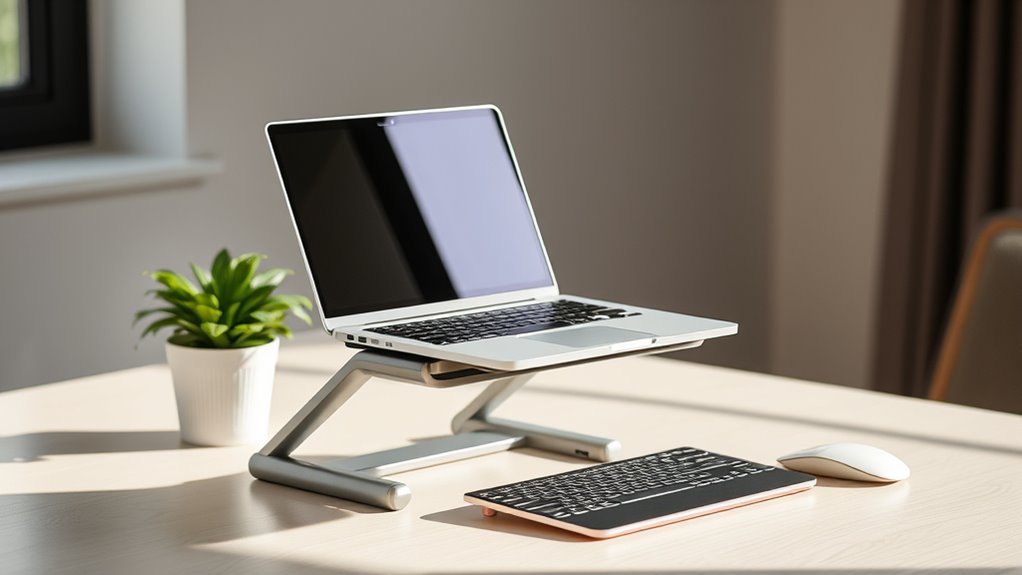
To create a comfortable and efficient workspace, understanding ergonomic principles for laptop docking is essential. First, position your dock and laptop at eye level to prevent neck strain. Use a stand or riser to elevate your laptop if needed. Keep your keyboard and mouse close so your elbows stay relaxed and close to your sides. Maintain a neutral wrist position to reduce fatigue and the risk of strain. Ensure your monitor, keyboard, and mouse are aligned to prevent awkward postures. Good lighting is critical, so avoid glare and position screens to minimize eye strain. Take regular breaks to stretch and move, which helps reduce tension and improve circulation. Additionally, paying attention to ergonomic design can significantly enhance comfort and reduce the risk of repetitive strain injuries. Incorporating adjustable furniture can further optimize your workspace for long-term comfort and adaptability. Considering proper workstation setup is also vital to promote overall ergonomic health and productivity, especially when integrating natural pools and outdoor elements that may influence your workspace environment. For example, using ergonomic workstation accessories can further customize your setup for optimal comfort.

Umaniy Laptop Stand with Docking Station, 8 in 1 USB C Hub HDMI Portable Laptop Stand for Desk with USB Ports, Multiport USBC Dock Stands Foldable Adjustable Computer Riser Holder Dongle for MacBook
- 8-in-1 Docking Station: Multiple ports for peripherals and data transfer
- 4K HDMI Output: Supports 3840×2160 resolution at 30Hz
- Power Delivery 100W: Charges laptop with 85W power output
As an affiliate, we earn on qualifying purchases.
As an affiliate, we earn on qualifying purchases.
Selecting the Right Docking Station for Comfort
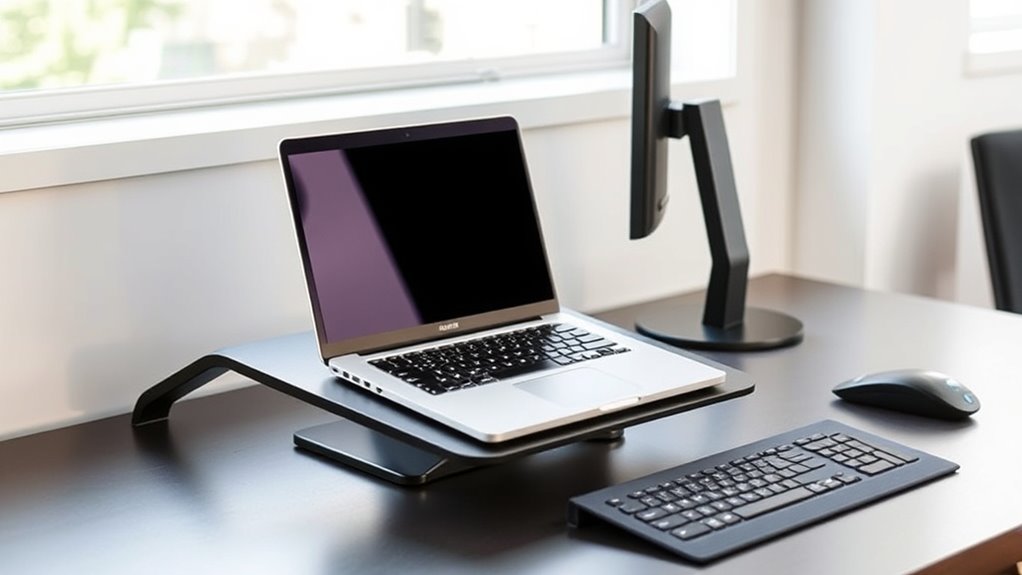
How can you guarantee that your docking station enhances your comfort during long work sessions? Start by choosing one that supports your workflow without forcing awkward postures. Look for a station with adjustable height and angle options to align your laptop and peripherals at eye level. Verify it has enough ports to connect all your essential devices easily, reducing clutter and strain. Opt for a model with a sturdy build and smooth cable management to keep your workspace tidy. Compatibility is key—make sure it works seamlessly with your laptop’s specifications. Finally, select a docking station that feels intuitive to use, so you avoid unnecessary repositioning. The right choice minimizes physical stress, promotes better posture, and ultimately makes long work hours more comfortable. Ensuring your workspace setup aligns with ergonomic principles can further support your comfort and productivity. Incorporating ergonomic accessories can also enhance your overall setup and reduce fatigue. Additionally, considering adjustable features can help personalize your workspace to fit your unique comfort needs. For optimal comfort, pay attention to local automation options that can help streamline your workflow and reduce repetitive movements. Incorporating height-adjustable docks allows for greater customization and better alignment with your ergonomic needs.

Cable Management Under Desk, Enhanced up to 15 Cord Organizer 20 Pair-Black
- Under-Desk Cable Management: Includes 20 hook-and-loop straps for organization
- Flexible Narrow-Space Design: Adjusts easily, fits tight corners
- High-Capacity Cable Control: Holds up to 15 cables per strap
As an affiliate, we earn on qualifying purchases.
As an affiliate, we earn on qualifying purchases.
Proper Placement of Your Laptop and External Monitor
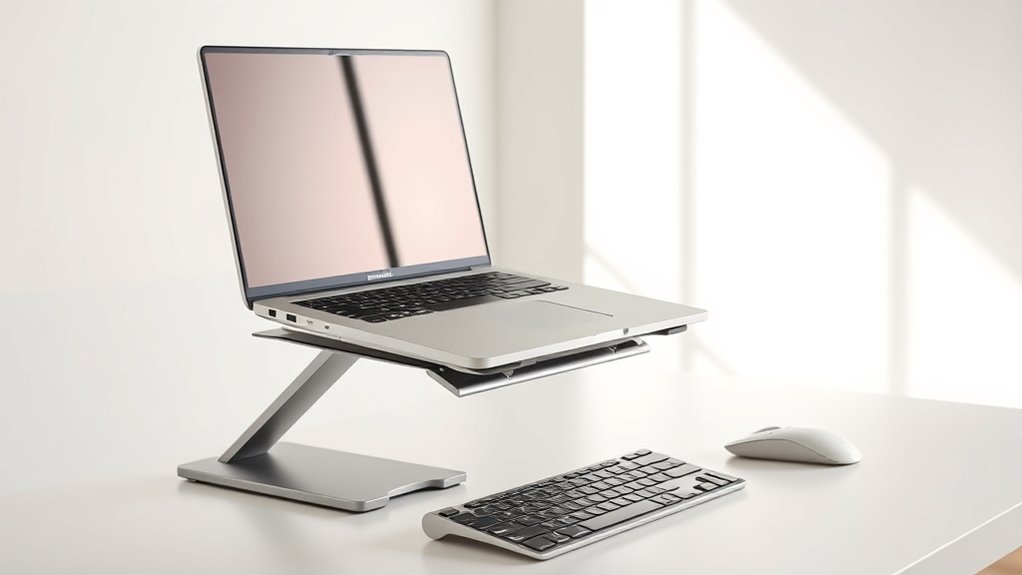
To lessen tension, position your laptop and monitor at eye level so you don’t have to tilt your head. Keep the screens at an ideal distance where you can see clearly without leaning forward or backward. Make certain both screens are at a consistent viewing angle to maintain comfort and prevent neck or eye fatigue. Ensuring your workspace has well‑sourced name coverage helps create a more ergonomic and comfortable environment. Additionally, choosing reliable backup power solutions can help prevent disruptions that may cause discomfort or strain during work. Incorporating simple organization strategies into your setup can also support a more efficient and stress-free workspace. Remember, proper ergonomic principles are essential to reduce physical strain and promote overall well-being during long work hours.
Eye Level Alignment
Ensuring your laptop and external monitor are at eye level is essential for comfortable and efficient work. When your screens are properly aligned, you reduce strain on your neck and shoulders, promoting better posture throughout the day. Adjust your monitor’s height so that the top of the screen is roughly at eye level, which keeps your head aligned naturally. Use stands or adjustable mounts if needed to achieve the right height. Your eyes should look slightly downward when viewing the screen, not straight ahead or up. This positioning helps prevent discomfort and fatigue, especially during long working hours. Taking the time to set your screens at eye level can considerably improve your overall ergonomics and productivity. Proper ergonomic setup also minimizes the risk of repetitive strain injuries and enhances focus during extended work sessions. Additionally, maintaining an ergonomic workstation supports your overall well-being, making your work environment more comfortable and sustainable. Being mindful of posture awareness ensures that you maintain healthy habits over time. Incorporating proper ergonomic principles can further optimize your workspace for comfort and efficiency.
Optimal Screen Distance
Having your screens positioned at the right distance from your eyes is key to reducing eye strain and maintaining comfort during long work sessions. The ideal distance is about arm’s length, roughly 20 to 30 inches away. This helps prevent your eyes from overworking and minimizes fatigue. To optimize your setup:
- Confirm the top of your screen is at or slightly below eye level to promote a natural head position.
- Keep the screen directly in front of you, avoiding sideways angles that cause neck strain.
- Adjust the distance so that text and images are clear without needing to lean forward or strain your eyes.
- Consider ergonomic adjustments such as screen tilt and lighting to further improve visual comfort and reduce strain.
- Additionally, choosing projector technology that supports high resolution and accurate color reproduction can enhance your visual experience and reduce eye fatigue during extended use.
- Proper screen placement can also help in maintaining a comfortable posture over long periods of work.
- Ensuring your workspace has good ambient lighting can further lessen eye discomfort and improve overall ergonomics.
- Incorporating blue light filters can also help reduce eye strain caused by prolonged screen exposure.
Consistent Viewing Angle
Maintaining a consistent viewing angle is essential for reducing neck and eye strain. Position your laptop and external monitor so that the top of the screens are at eye level. This prevents you from tilting your head up or down, which can cause discomfort over time. Keep the screens directly in front of you to avoid twisting your neck. Adjust the height and distance to ensure your eyes are level with the top third of the display. Use monitor stands or risers if needed. Consistency is key; switching between different angles forces your neck and eyes to adapt repeatedly. By setting your screens at the right height and maintaining that position, you promote better posture and reduce fatigue during long work sessions.

Wireless Keyboard and Mouse Combo, 2.4G Ergonomic Wave Keys(Black)
- Wave Ergonomic Design: Fits fingers and relieves wrist strain
- Adjustable Keyboard Stand: Customize height for comfort
- Contoured Wireless Mouse: Fits right hand comfortably
As an affiliate, we earn on qualifying purchases.
As an affiliate, we earn on qualifying purchases.
Adjusting Screen Height for Optimal Viewing Angles
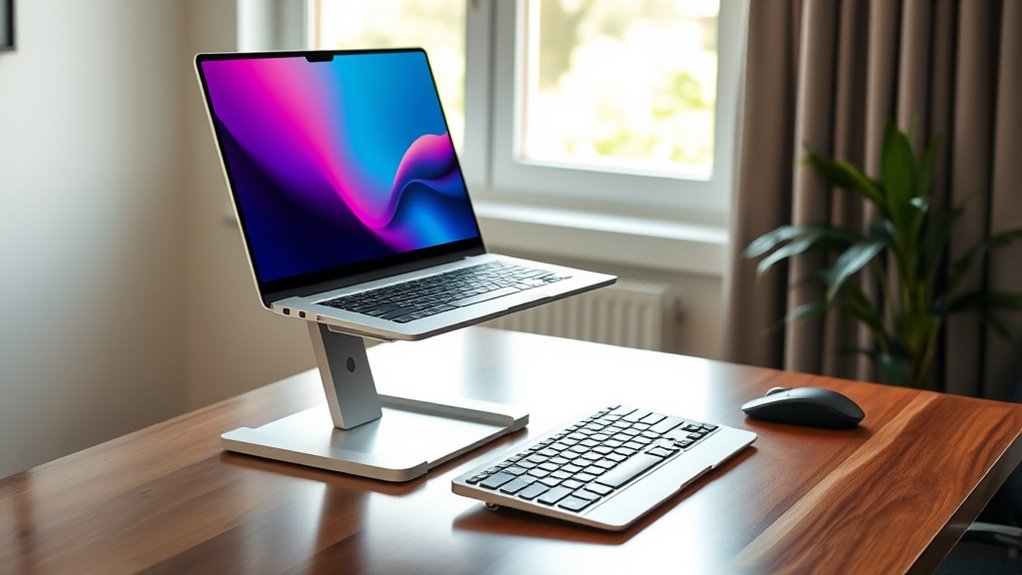
Adjusting your screen height is essential to reduce neck strain and improve comfort during long work sessions. When your screen is at eye level, you prevent slouching and minimize tension in your neck and shoulders. To achieve this, consider these steps:
- Elevate your laptop or monitor so the top of the screen aligns with your eyes.
- Use a stand or stack books underneath if needed.
- Ensure the screen is directly in front of you, not tilted or turned.
Positioning Your Keyboard and Mouse for Neutral Posture
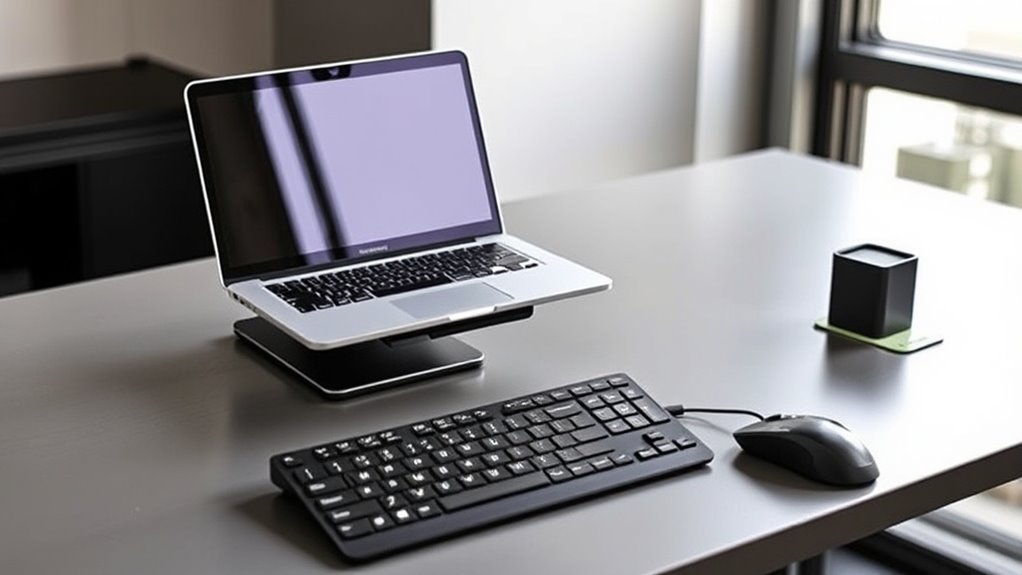
To stay comfortable and prevent strain, you need to position your keyboard and mouse correctly. Keep your wrists neutral and avoid bending them up or down. Also, maintain a relaxed elbow flexion to support proper posture during work.
Keep Wrists Neutral
Keeping your wrists in a neutral position is essential for reducing strain and preventing injury while working at your laptop. When your wrists are aligned naturally, you minimize tension and reduce the risk of repetitive strain injuries. To achieve this, focus on these three key points:
- Keep your keyboard and mouse at elbow height to avoid bending your wrists upward or downward.
- Use wrist rests or pads to support your wrists when not actively typing or clicking.
- Maintain a slight, natural curve in your wrists without resting them excessively on surfaces.
Maintain Elbow Flexion
Maintaining proper elbow flexion is key to supporting a neutral posture while working. To do this, position your keyboard and mouse so your elbows stay close to your sides and bent at about a 90 to 110-degree angle. Keep your forearms parallel to the ground or slightly inclined downward. This reduces strain on your shoulders and neck. Adjust your chair height or use a keyboard tray to ensure your wrists aren’t bent upward or downward. Avoid reaching forward or hunching your shoulders. Your hands should move naturally from your elbows, not your shoulders. Regularly check your arm position to prevent tension and fatigue. Maintaining this elbow flexion helps promote comfort and reduces the risk of musculoskeletal issues during long work sessions.
Managing Cable and Accessory Placement to Reduce Clutter
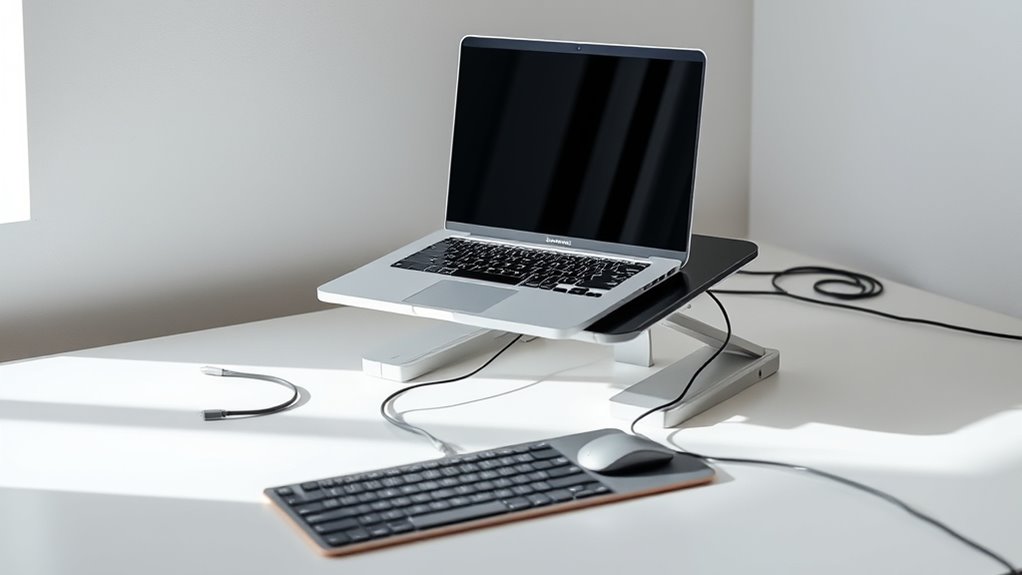
Managing cable and accessory placement is essential for creating a tidy and efficient workspace. Proper organization prevents tangles, reduces distractions, and improves safety. To achieve this, consider these strategies:
- Use cable organizers or clips to keep cords aligned and prevent them from sprawling across your desk.
- Position frequently used accessories within easy reach to minimize unnecessary movement.
- Label cables and accessories to quickly identify and disconnect or connect devices as needed.
Ergonomic Tips for Wrist and Hand Support
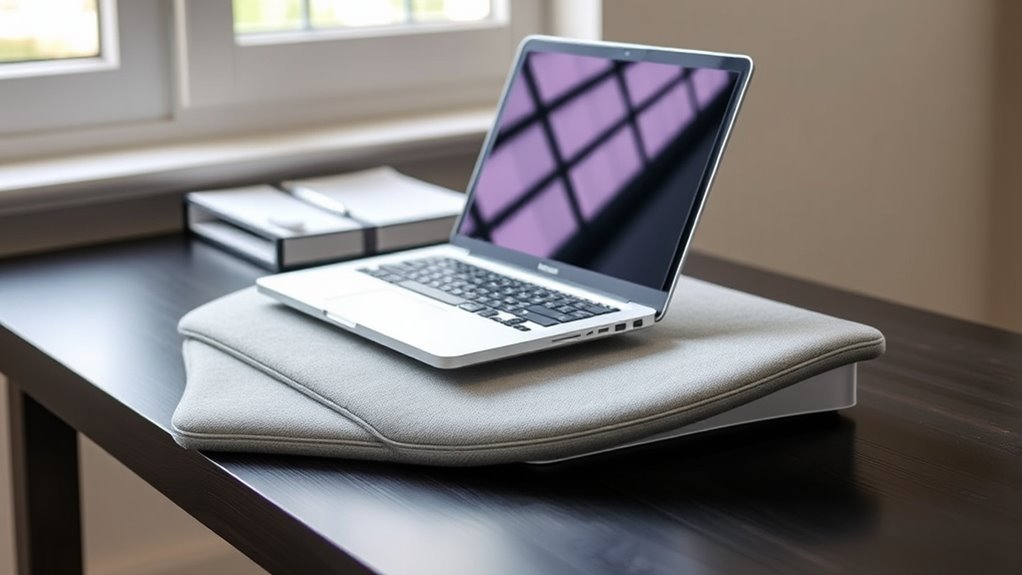
To prevent strain, keep your wrists in a neutral position while working, avoiding awkward bends. Using a supportive hand rest can help reduce pressure on your wrists and improve comfort. Proper wrist placement and support are key to maintaining good ergonomic habits during long hours at your laptop.
Proper Wrist Positioning
Ensuring your wrists stay in a neutral position while docking your laptop can substantially reduce strain and prevent discomfort. To achieve this, focus on maintaining a straight, relaxed wrist alignment. Here are three tips:
- Keep your wrists level with your forearms, avoiding bending up or down.
- Use an external keyboard or wrist rest if needed to support a comfortable angle.
- Adjust the height of your docking station or laptop to prevent reaching or hunching over, which can cause wrist angles to shift.
Supportive Hand Resting
Supporting your wrists and hands with proper rests can make a significant difference in reducing strain during prolonged laptop use. Use a cushioned wrist pad or a soft, supportive pad placed comfortably in front of your keyboard. This helps keep your wrists in a neutral position, preventing unnecessary bending or twisting. Make sure your palms rest lightly on the pad without pressing down hard, which can cause tension. Adjust your chair and desk height so your forearms are parallel to the floor, reducing the need to lift or stretch your hands. Take regular breaks to relax your hands and stretch your fingers. Proper hand support minimizes fatigue and helps prevent repetitive strain injuries, making your workspace more comfortable and healthier over time.
Maintaining Good Posture During Extended Work Sessions

Maintaining good posture during extended work sessions is essential to prevent discomfort and long-term health issues. To stay aligned and comfortable, focus on these key points:
- Keep your monitor at eye level, so you don’t strain your neck or shoulders.
- Sit with your back fully supported by your chair’s lumbar support, maintaining a natural curve.
- Ensure your feet are flat on the floor or on a footrest, avoiding dangling legs or slouching.
Adjust your workspace so your elbows are at a 90-degree angle, and your wrists are straight while typing. Regularly check your posture, and make small adjustments as needed. Staying mindful of these practices helps reduce fatigue and promotes long-term comfort during prolonged work sessions.
Incorporating Movement and Breaks Into Your Routine

To prevent stiffness and boost focus, it’s important to incorporate movement and breaks into your work routine. Set a timer to remind yourself to stand, stretch, or walk every 30 to 60 minutes. Even quick movements, like shoulder rolls or neck stretches, can reduce tension and improve circulation. Taking short breaks helps refresh your mind, reducing fatigue and increasing productivity. Avoid staying seated for long periods; instead, shift positions or move around to keep your muscles active. Hydrate regularly to stay alert and promote overall well-being. Incorporate simple activities such as walking around your space or doing light stretches. These small actions, done consistently, make a significant difference in maintaining comfort and preventing strain during long work sessions.
Common Ergonomic Mistakes and How to Avoid Them
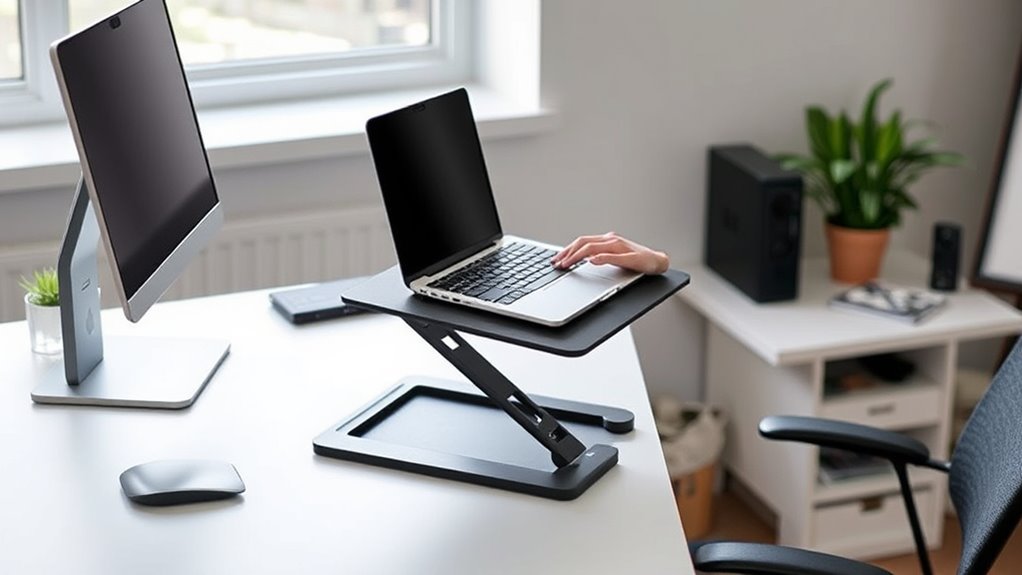
Many people unknowingly make ergonomic mistakes that can cause discomfort and long-term health issues. To avoid these pitfalls, pay attention to your setup. First, avoid looking down at your screen; keep your monitor at eye level. Second, don’t slouch or lean forward; maintain a straight back with shoulders relaxed. Third, resist the urge to rest your wrists on hard surfaces or bend them awkwardly. Poor posture can lead to strain, pain, and repetitive stress injuries. Use an adjustable dock to position your laptop properly, and consider ergonomic accessories like a wrist support or monitor riser. Regularly check your posture and make adjustments as needed. Staying mindful of these common mistakes helps prevent discomfort and supports long-term health.
Frequently Asked Questions
How Can I Personalize My Docking Setup for Different Tasks?
You can personalize your docking setup by adjusting monitor heights to match your eye level and adding ergonomic accessories like a wrist rest or adjustable keyboard tray. Use different configurations for tasks—such as a larger monitor for design work or a laptop stand for portability. Keep frequently used items within reach, and customize cable management to keep your workspace tidy and efficient, making every task more comfortable and productive.
What Accessories Can Enhance Ergonomic Comfort With My Docking Station?
You can enhance ergonomic comfort with your docking station by adding a supportive wrist rest, adjustable monitor arms, and a comfortable keyboard and mouse. These accessories help reduce strain, promote proper posture, and improve overall comfort during long work sessions. By customizing your setup with these tools, you guarantee a healthier, more efficient workspace, making it easier to stay focused, productive, and pain-free throughout your workday.
How Do I Adjust My Setup for Shared Workspaces?
In shared workspaces, you should customize your setup for comfort and flexibility. Adjust your monitor height so your eyes are level, and use a portable stand if needed. Bring a comfortable keyboard and mouse, and position them to keep your wrists straight. Use a privacy screen if necessary, and make certain your workspace is clutter-free. This way, you can work efficiently while maintaining good ergonomics, even in a shared environment.
Are There Specific Ergonomic Guidelines for Laptop Docking in Small Spaces?
Yes, there are ergonomic guidelines for laptop docking in small spaces. You should position your dock at elbow height to reduce strain, keep your monitor directly in front of you, and use an external keyboard and mouse to maintain proper wrist alignment. Make certain your chair supports your lower back, and keep your feet flat on the floor. Regular breaks and stretching help prevent discomfort in tight environments.
How Often Should I Reassess My Ergonomic Setup for Optimal Comfort?
How often should you reassess your ergonomic setup? You should do it at least every few months or whenever you notice discomfort or fatigue. Are you experiencing aches or strains? These signs mean it’s time to review your workspace. Regular checks help prevent long-term issues and keep you comfortable and productive. Don’t wait for discomfort to become pain—stay proactive and adjust your setup as needed to maintain ideal ergonomics.
Conclusion
By prioritizing ergonomic setup and mindful movement, you create a workspace that fosters comfort and productivity. While a well-designed dock and proper positioning support your posture, neglecting breaks can undermine your efforts. Striking this balance transforms your workspace from a source of strain into a haven of efficiency. Ultimately, thoughtful ergonomics empower you to work longer, healthier, and more focused—proving that comfort and performance go hand in hand.
Baby shower & registry season Picks
baby registry must-haves
As an affiliate, we earn on qualifying purchases.