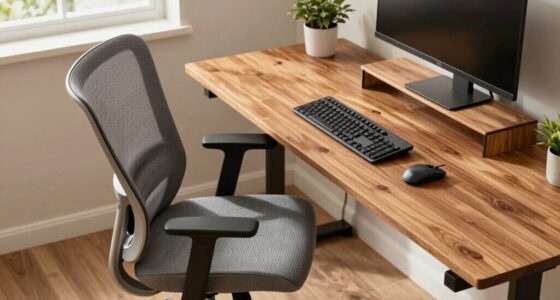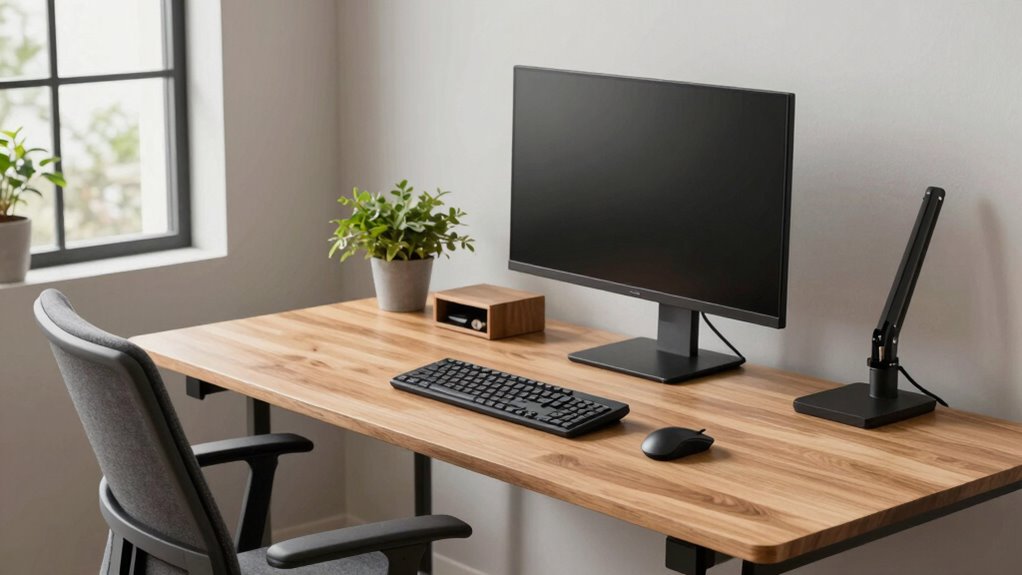
An ergonomic desk layout helps you work comfortably and boost productivity by properly positioning your furniture and accessories. Keep your monitor at eye level, so your neck stays relaxed, and your keyboard and mouse within easy reach to prevent strain. Sit with your feet flat on the floor, back supported, and take regular breaks. By maintaining good posture and organizing your workspace thoughtfully, you’ll reduce fatigue. Continue exploring to discover how to set up your workspace for maximum comfort.
Key Takeaways
- Ensure the desk and chair are adjustable to support proper posture and comfort.
- Position the monitor at eye level, about an arm’s length away, to reduce neck strain.
- Arrange keyboard and mouse within easy reach with elbows at 90° to prevent wrist strain.
- Maintain foot support with flat feet on the floor or footrest, and use lumbar support for back health.
- Organize workspace to minimize unnecessary movements and incorporate regular breaks to promote ergonomic health.
Understanding the Principles of Ergonomics
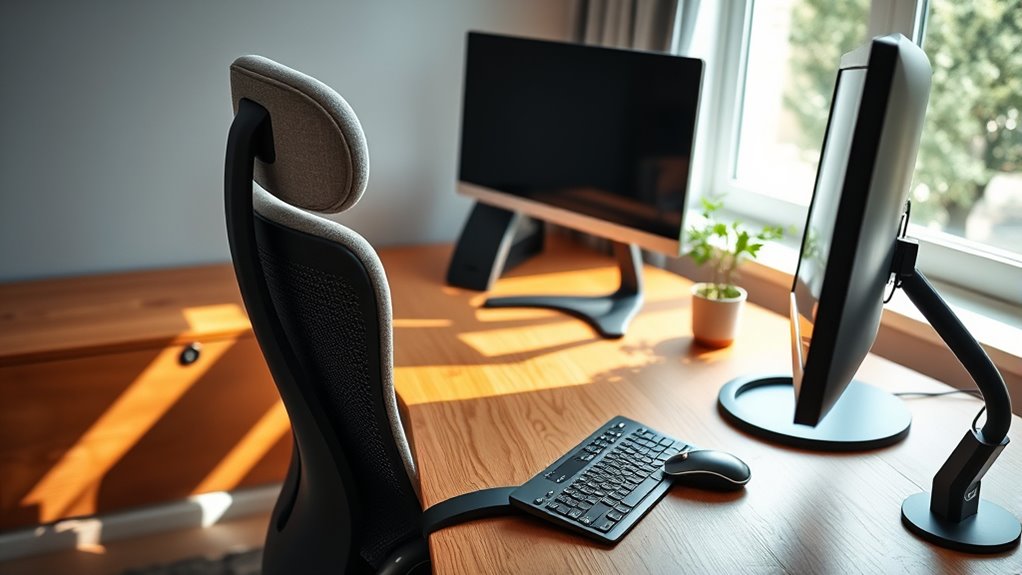
Understanding the principles of ergonomics is essential for designing a workspace that promotes comfort and productivity. When you grasp these principles, you can reduce strain and prevent injuries by aligning your workspace with your body’s natural movements. Focus on maintaining proper posture, which means sitting with your feet flat on the floor, knees at a 90-degree angle, and your back supported. Keep your monitor at eye level to avoid neck strain, and position your keyboard and mouse within easy reach to prevent shoulder and wrist discomfort. Good ergonomics also involve minimizing repetitive motions and taking regular breaks to reduce fatigue. Additionally, incorporating ergonomic tools such as adjustable chairs and keyboard stands can further enhance comfort and support. Using natural lighting can also help reduce eye strain and improve overall well-being. Being mindful of workstation setup can make a significant difference in long-term comfort and health. Furthermore, understanding ergonomic standards can guide you in selecting appropriate equipment and configurations. By applying these fundamental principles, you set the foundation for a healthier, more efficient work environment that supports your well-being.
Selecting the Right Desk and Chair
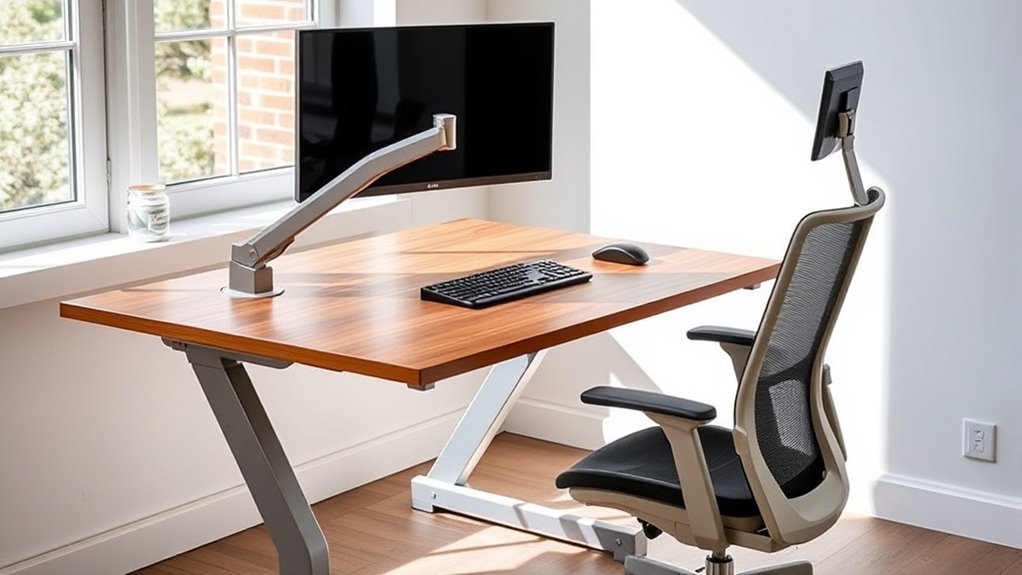
Choosing the right desk and chair is essential for creating an ergonomic workspace that supports your comfort and productivity. Start by selecting a desk that offers enough surface area for your work essentials without feeling crowded. It should be adjustable if possible, so you can set it to a height that keeps your elbows at a 90-degree angle. Your chair needs to provide proper lumbar support and be adjustable in height and tilt. Make sure your feet rest flat on the floor or on a footrest, with thighs parallel to the ground. The seat should be deep enough to support your thighs comfortably without pressure behind your knees. Prioritize quality and adjustability to maintain proper posture throughout your workday. Additionally, choosing ergonomic furniture designed for comfort can make a significant difference in long-term health and productivity. Incorporating smart home features such as adjustable lighting and climate control can further enhance your workspace environment for optimal comfort. Using ergonomic principles when setting up your desk can help prevent strain and discomfort over time. Paying attention to proper workstation setup can also reduce fatigue and improve overall well-being during prolonged periods of work.
Proper Placement of Computer and Accessories
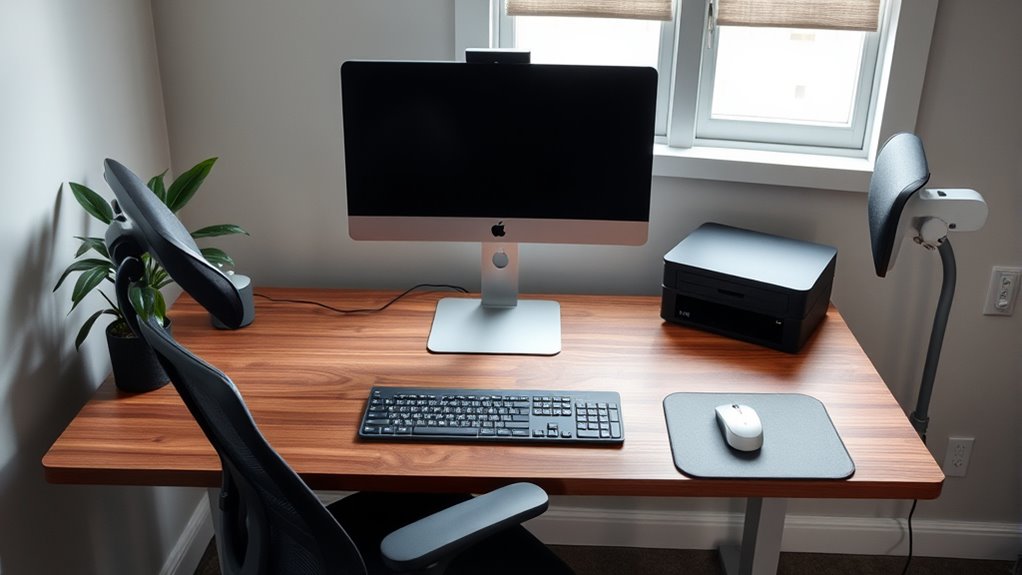
You should position your monitor at eye level to prevent neck strain. Keep your keyboard and mouse close enough so your arms stay relaxed and your wrists don’t bend. Consider an accessory placement strategy that reduces unnecessary movements and keeps everything within easy reach. Incorporating smart appliances into your workspace can further optimize your setup by automating routine adjustments for comfort. Additionally, arranging your accessories to promote proper ergonomic positioning can help prevent discomfort and improve productivity throughout your workday. To further enhance comfort, use ergonomic equipment such as adjustable chairs and footrests to support proper alignment and reduce fatigue during long work sessions. Understanding different styling products can also assist in creating a workspace that encourages good posture and reduces strain during repetitive tasks. Regularly reviewing and adjusting your setup based on lifestyle changes can help maintain optimal ergonomic benefits over time.
Monitor at Eye Level
Have you ever experienced neck strain after long hours at your desk? If so, adjusting your monitor to eye level can make a big difference. When your screen is too low or high, you strain your neck and shoulders unnecessarily. To guarantee proper placement:
- Position the top of your monitor roughly at eye level.
- Keep the screen about an arm’s length away.
- Adjust tilt to reduce glare and reflections.
- Maintain a neutral neck position, avoiding looking up or down for extended periods.
Ensuring your workspace is ergonomically designed helps prevent musculoskeletal discomfort and promotes better posture. Additionally, considering ergonomic design principles can further optimize your setup for comfort and health. Incorporating proper workspace sanitation practices can also maintain a healthier environment and extend the lifespan of your equipment. Regularly checking and adjusting your setup ensures ongoing ergonomic correctness, which is crucial for long-term comfort. Incorporating smart ergonomic tools can assist in maintaining optimal positioning throughout your workday.
Keyboard and Mouse Placement
To prevent strain and discomfort, it’s essential to position your keyboard and mouse so they promote a natural, relaxed posture. Keep your keyboard directly in front of you, about elbow height, so your arms stay close to your sides. Your wrists should remain straight, not bent up or down, to reduce strain. Place your mouse within easy reach, close to the keyboard, at a similar height to prevent overextension. Use a mouse pad with wrist support if needed. Avoid resting your wrists on hard surfaces; instead, keep them floating or supported by a soft pad. Maintain a slight bend in your elbows and keep your shoulders relaxed. Proper placement minimizes muscle tension and helps prevent repetitive strain injuries over time. Additionally, utilizing proper ergonomic principles can further enhance comfort and reduce the risk of injury. Incorporating ergonomic accessories like adjustable keyboard stands or ergonomic mice can also contribute to a healthier workspace. Paying attention to ergonomic design and ergonomic awareness can make a significant difference in long-term comfort and health, especially when considering ergonomic principles in your overall setup.
Accessory Positioning Strategy
Ensuring your computer and accessories are properly positioned can considerably reduce strain and improve comfort throughout the workday. Proper placement minimizes awkward movements and helps maintain good posture. Here are four key tips to optimize your accessory positioning:
- Place your monitor directly in front of you, about an arm’s length away, with the top of the screen at eye level.
- Position your keyboard and mouse close enough to prevent reaching, keeping elbows at a 90-degree angle.
- Keep frequently used accessories within easy reach to reduce unnecessary stretching.
- Use stands or risers to elevate laptops or peripherals, ensuring they’re aligned with your eye level and comfortable to use.
- Consider ergonomic principles when arranging your workspace to further enhance comfort and reduce the risk of strain.
Implementing these strategies ensures your workspace supports your health and productivity every day.
Optimizing Lighting and Screen Positioning
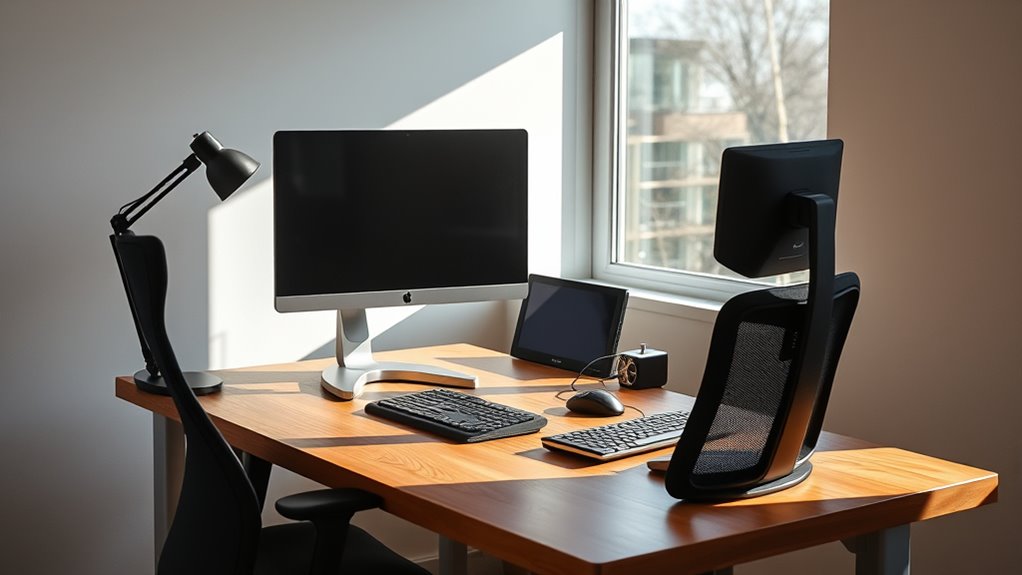
To improve your comfort, make sure your screen is at eye level, reducing neck strain during long hours. Maximize lighting by placing lights to minimize glare and dark spots on your workspace. Adjusting your screen height and lighting setup can make a big difference in preventing fatigue and improving focus.
Adjust Screen Height
Have you ever noticed how adjusting your screen height can dramatically improve your comfort and productivity? When your monitor is at the right level, it reduces neck strain and keeps your head in a natural position. To optimize your screen height, consider these key points:
- Ensure the top of your screen is at eye level to avoid tilting your head up or down.
- Position the screen about an arm’s length away for clear visibility without eye strain.
- Use adjustable stands or monitor arms to fine-tune height easily.
- Keep the screen directly in front of you, minimizing head turning and promoting good posture.
Maximize Lighting Efficiency
Maximizing lighting efficiency begins with strategically positioning your workspace to reduce glare and shadows that can cause eye strain. Place your monitor perpendicular to windows, so natural light illuminates your screen evenly without causing reflections. Use adjustable blinds or curtains to control sunlight intensity throughout the day. Position task lighting directly over your work area, not behind or beside your screen, to prevent shadows. Adjust your screen brightness to match ambient light levels for comfortable viewing. Here’s a quick guide:
| Lighting Tip | Ideal Position | Additional Notes |
|---|---|---|
| Natural Light | Side of your workspace | Avoid direct sunlight on screen |
| Overhead Lighting | Above and slightly in front of you | Use diffused bulbs for soft light |
| Task Lighting | Directly on your work surface | Use adjustable lamps |
Implement these tips to create a well-lit, eye-friendly workspace.
Organizing Your Workspace for Comfort and Efficiency
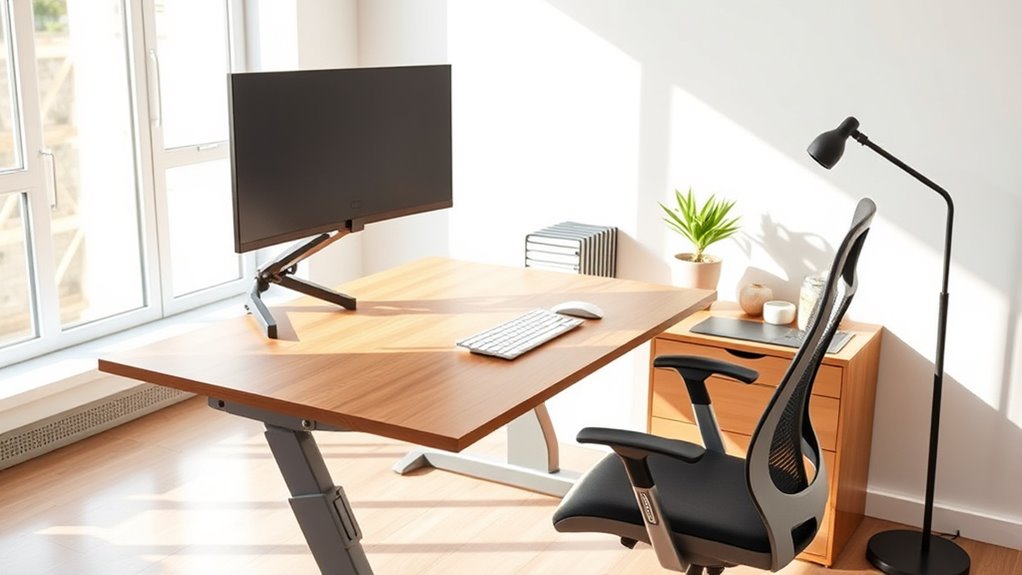
Creating an organized workspace is essential for both comfort and productivity. When your desk is cluttered, it’s harder to focus and find what you need quickly. To maximize your space, consider these key steps:
- Keep frequently used items within arm’s reach to minimize unnecessary movement.
- Designate specific spots for papers, supplies, and devices to reduce clutter.
- Use storage solutions like trays or drawers to tidy away items not in immediate use.
- Arrange your monitor, keyboard, and mouse to promote a natural, relaxed posture.
A tidy workspace not only minimizes distractions but also boosts efficiency. Regularly reassess your setup to ensure everything remains in its best place. This way, your environment supports both comfort and productivity throughout your workday.
Tips for Maintaining Good Posture Throughout the Day
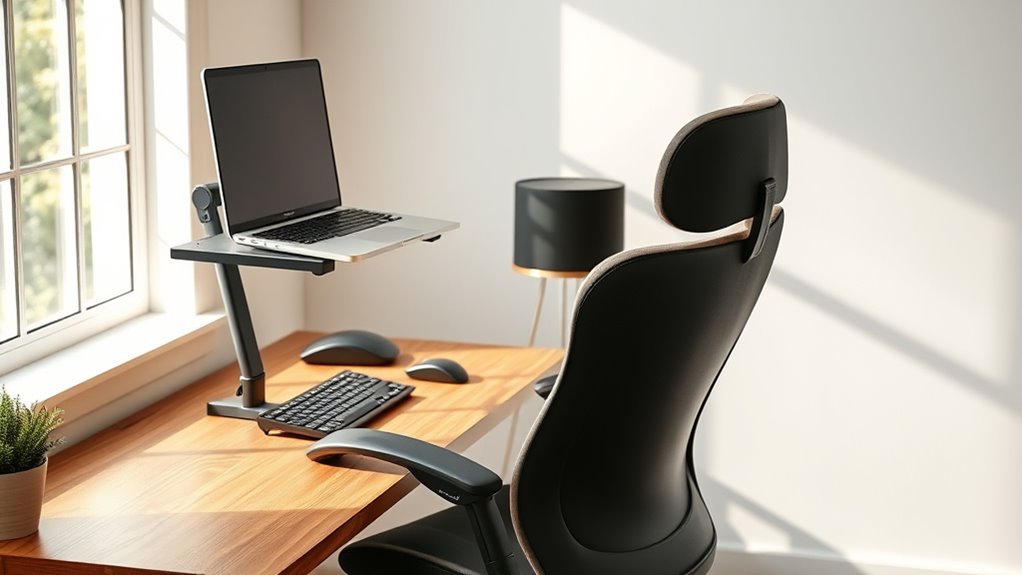
Maintaining good posture throughout the day is essential for preventing discomfort and long-term musculoskeletal issues. To do this, keep your feet flat on the floor or on a footrest, and avoid crossing your legs for extended periods. Sit back in your chair so your lower back is supported by the lumbar curve, and adjust the chair height so your knees are roughly level with your hips. Keep your shoulders relaxed and your elbows close to your sides, forming about a 90-degree angle. Position your monitor at eye level to prevent neck strain, and keep your wrists straight while typing. Take regular breaks to stretch and change positions—this helps reduce fatigue and keeps your muscles engaged. Consistently practicing these habits promotes comfort and long-term health.
Frequently Asked Questions
How Often Should I Take Breaks During Work Hours?
You should take a break every 30 to 60 minutes during work hours. Stand up, stretch, or walk around to prevent stiffness and reduce fatigue. Short breaks help improve focus and productivity, while also minimizing strain on your eyes, neck, and back. Even quick pauses can make a big difference in maintaining your comfort and overall health, so make sure to set reminders to step away regularly.
What Materials Are Best for Ergonomic Desk Accessories?
You should prioritize materials that gently support your comfort and health. Opt for soft, breathable fabrics like memory foam or gel-filled cushions for wrist rests and chair padding. Smooth, durable plastics or aluminum work well for accessories like monitor stands and keyboard trays. These materials are lightweight yet sturdy, providing a balanced feel that encourages good posture without distraction. Choosing the right materials helps you stay comfortable and focused throughout your workday.
Can Ergonomic Setups Reduce Long-Term Health Risks?
Yes, ergonomic setups can notably reduce long-term health risks. By properly aligning your monitor, keyboard, and chair, you minimize strain on your neck, back, and wrists. This setup encourages good posture, reduces muscle fatigue, and prevents repetitive strain injuries. Consistently maintaining an ergonomic workspace helps you avoid chronic issues like back pain, carpal tunnel syndrome, and eye strain, promoting overall health and comfort during long hours at your desk.
How Do I Customize My Workspace for Different Tasks?
You can customize your workspace for different tasks by adjusting your chair height, monitor position, and keyboard placement to suit each activity. Use a sit-stand desk or risers to switch between sitting and standing. Incorporate task-specific accessories like document holders or external mice. Keep frequently used items within easy reach, and organize your space to minimize movement, ensuring comfort and efficiency across various tasks.
Are There Ergonomic Considerations for Standing Desks?
Absolutely, standing desks demand ergonomic finesse, or you’ll end up feeling like a human pretzel. Keep your monitor at eye level, elbows close to your body, and feet flat on the ground. Shift your weight regularly to avoid a permanent stamp of “standing stiff.” Use an anti-fatigue mat, and don’t forget to take sitting breaks—your back will thank you. Basically, stand smart, not stiff.
Conclusion
By embracing these ergonomic principles, you gently guide your workspace toward comfort and efficiency. Small adjustments, like mindful positioning and organized accessories, help you avoid unnecessary strain and fatigue. With each thoughtful change, you nurture a healthier posture, making your workday more pleasant. Remember, a well-designed desk isn’t just about space—it’s about creating a harmonious flow that supports your well-being, allowing you to work confidently and comfortably, day after day.